
How to Create a Questionnaire Form with WordPress?


A WordPress questionnaire form is the smart way to gather your users feedback and understand exactly what they want.
Unlike survey forms, Questionnaire form is a set of fixed questions for collecting data directly from your audience. Thus, we can say all surveys are questionnaires, but not all questionnaires are surveys.
A questionnaire form helps you find what exactly your audience wants, what makes them tick and what they love about your product or services. Plus what new they want to see next.
Lucky for you, ARForms is loaded with tons of well designed templates, styling options and dynamic features to create a ready-to-go questionnaire form.
In this blog, you’ll see how to build a questionnaire form in WordPress using the most loved form builder plugin – ARForms. We’ll walk you step by step and also shout out some awesome design practices for your questionnaire layout. So, let’s jump right in!
No need to make any assumptions when you can just ask directly from your visitors and audience. In most scenarios, a questionnaire is for taking feedback, registrations, quizzes or research purposes.
Here’s why having a questionnaire in WordPress is the best idea:
Now is time to see How to create a form questionnaire using ARForms.

Now go to Plugin → Add New → Upload Plugin → Choose File, then simply upload the ARForms zip file.
After that click Install Now, followed by Activate. Once you activate the ARForms plugin, you’ll see the ARForms dashboard inside your WordPress dashboard.

Still need help? You can check out our friendly user guide to get started with ARForms.
Pro Tip: Go with ARForms Pro to create your questionnaire form in WordPress like a Pro with
Next, you’ll see three options to continue before jumping straight to ARForms drag and drop form editor.

Now here’s the thing. By selecting Blank form, you can build your WordPress questionnaire form from scratch. While going with ready-to-go templates and sample forms helps you kickstart your project in just a few minutes with little customizations.
So we’ll be selecting the easy way because why go the hard way when we got a shortcut.
That’s why head straight to templates. Here you can select the template of “Feedback Form”

If you are aiming for one. If not, just move on to Sample Forms and here, you’ll get 50+ options to choose from.

Once you select your preferred template or sample form, click on Continue. You’ll now experience the ARForms’ super simple drag and drop form editor. From here, you can easily customize your questionnaire form the way you want.

In the middle, we’ve already got over the ready-to-go sample form with a questionnaire layout. However, if you are planning to personalize it, now is the right time.

A clear questionnaire layout comes with:
Also, when making your own questionnaire layout, remember to use a mix of question form fields like this:
Next, you can simply drag form fields into your questionnaire form and rearrange them in proper order.

You can also edit labels, set required fields and add conditional logic to make your questionnaire form more interactive.
Once you are happy with your questionnaire layout, Click Save Form to secure your progress just in case before hopping on the next step.
In your questionnaire form, here are the settings you can customize to build a smart questionnaire in WordPress:
But before going, we recommend you to check how it will appear in real life with ARForms quick live preview.
Just click on the eye icon on the top right bar. Now it’ll let you test your questionnaire forms will appear across desktop, tablet and your smart phone too.

Now just click on the [] shortcodes on the top bar in the ARForms form editor.
From here, copy the shortcode of your questionnaire form and paste it anywhere in your WordPress site.
Whether it’s a blog post, landing page, or sidebar widget, you can paste your questionnaire form anywhere you like.
For example if you are making a questionnaire form with more questions, we recommend you to break them into small section with multi-step form so it can be easier to finish
For example if someone ticks “Yes” to give open feedback, then only show them the textbox, otherwise no.
With the right form questions order, you can keep your users away from leaving your form half way
In a nutshell, a well designed WordPress questionnaire form not only gathers data, but also encourages your customers to talk out their opinions honestly and fill the form.
Till now, ARForms is the best WordPress questionnaire form plugin, perfectly loaded with 50+ templates and sample forms including questionnaire forms too.
The best part? ARForms goes beyond basic features, offering exclusive styling options, advanced spam protection and data collection features too.
So what are you waiting for? Boost your online business and understand your audience to make data driven smart decision with ARForms questionnaire form
Unlike survey forms, Questionnaire form is a set of fixed questions for collecting data directly from your audience. Thus, we can say all surveys are questionnaires, but not all questionnaires are surveys.
A questionnaire form helps you find what exactly your audience wants, what makes them tick and what they love about your product or services. Plus what new they want to see next.
Lucky for you, ARForms is loaded with tons of well designed templates, styling options and dynamic features to create a ready-to-go questionnaire form.
In this blog, you’ll see how to build a questionnaire form in WordPress using the most loved form builder plugin – ARForms. We’ll walk you step by step and also shout out some awesome design practices for your questionnaire layout. So, let’s jump right in!
Why Have a Questionnaire in WordPress Site?
Adding a questionnaire in the WordPress site is the smartest way to gather valuable information from your audience.No need to make any assumptions when you can just ask directly from your visitors and audience. In most scenarios, a questionnaire is for taking feedback, registrations, quizzes or research purposes.
Here’s why having a questionnaire in WordPress is the best idea:
- Get Feedback: Gather feedback from your audience about what they like and what they don’t.
- Know Your Audience: Understand your customer’s needs, interests and problems in detail
- Grow Your Email List: Easy to grow your email list by offering special quiz results in exchange of emails
- Increase Sales: Make more sales by knowing what is the right product for them
- Improve Products: Businesses can improve products and services. Or they can develop new ones on demand to meet their customer’s expectations
- Enhance Customer Journey: Optimizes the buying journey of your customers and personalize your customers overall experience
Now is time to see How to create a form questionnaire using ARForms.
How to Create a WordPress Questionnaire Form Using ARForms
Step 1: Install and Activate ARForms
To get started, head to ARForms official website and download your ARForms favorite version. Once you get the zip file, jump straight to your WordPress dashboard.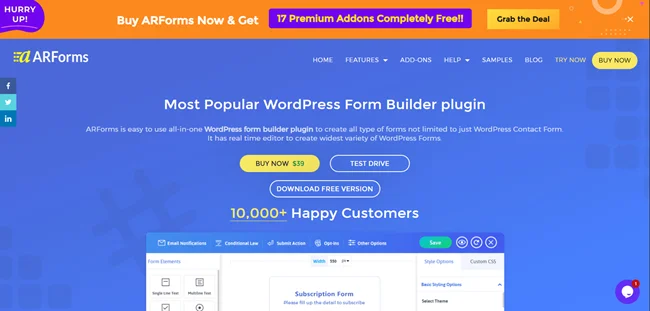
Now go to Plugin → Add New → Upload Plugin → Choose File, then simply upload the ARForms zip file.
After that click Install Now, followed by Activate. Once you activate the ARForms plugin, you’ll see the ARForms dashboard inside your WordPress dashboard.

Still need help? You can check out our friendly user guide to get started with ARForms.
Pro Tip: Go with ARForms Pro to create your questionnaire form in WordPress like a Pro with
Step 2: Choose a Questionnaire Template Or Create from Scratch
Go straight to ARForms →Manage Forms → Add New Form.Next, you’ll see three options to continue before jumping straight to ARForms drag and drop form editor.
- Blank Form
- Templates
- Sample Forms

Now here’s the thing. By selecting Blank form, you can build your WordPress questionnaire form from scratch. While going with ready-to-go templates and sample forms helps you kickstart your project in just a few minutes with little customizations.
So we’ll be selecting the easy way because why go the hard way when we got a shortcut.
That’s why head straight to templates. Here you can select the template of “Feedback Form”
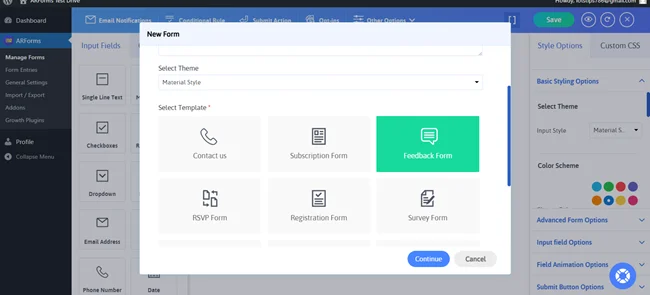
If you are aiming for one. If not, just move on to Sample Forms and here, you’ll get 50+ options to choose from.
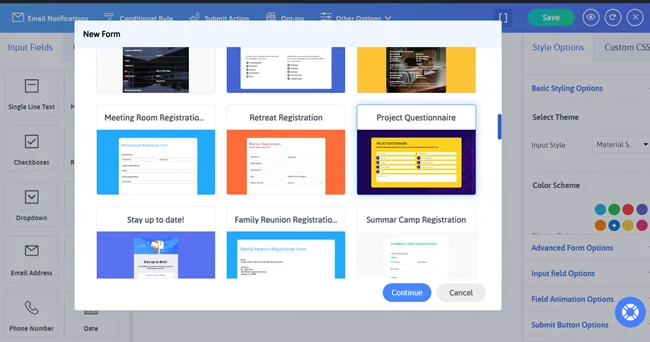
Once you select your preferred template or sample form, click on Continue. You’ll now experience the ARForms’ super simple drag and drop form editor. From here, you can easily customize your questionnaire form the way you want.
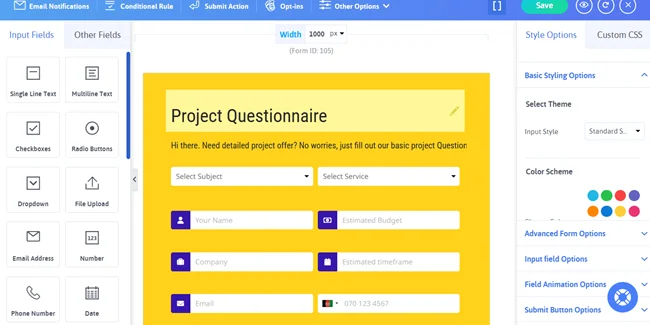
Step 3: Add Questions In Your Questionnaire Form
Here, you’ll notice the tons of field options in the left column and styling options in the right column.In the middle, we’ve already got over the ready-to-go sample form with a questionnaire layout. However, if you are planning to personalize it, now is the right time.
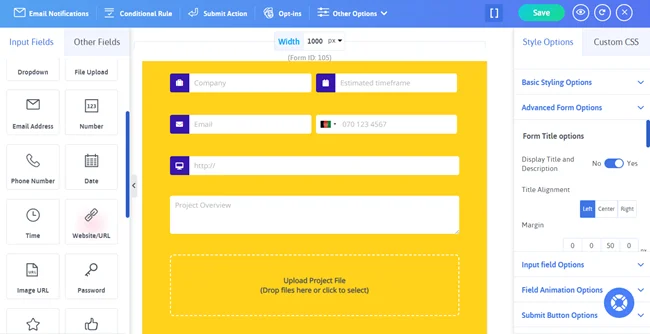
A clear questionnaire layout comes with:
- Clear Title
- Short Introduction
- and logical set of questions
Also, when making your own questionnaire layout, remember to use a mix of question form fields like this:
- Single Line text
- Multi Line text
- Multiple choice
- Likert Scale
- Checkbox
- Number (optional)
- File upload (optional)
- or Radio buttons with yes/no
Next, you can simply drag form fields into your questionnaire form and rearrange them in proper order.
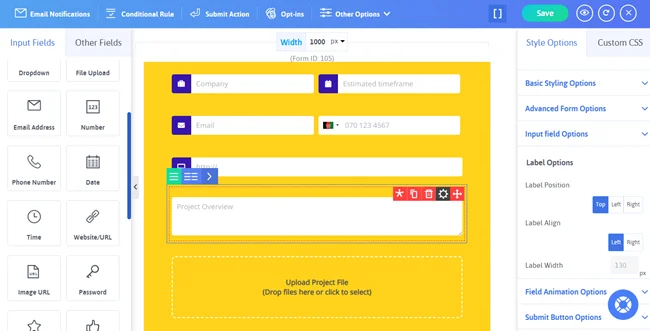
You can also edit labels, set required fields and add conditional logic to make your questionnaire form more interactive.
Once you are happy with your questionnaire layout, Click Save Form to secure your progress just in case before hopping on the next step.
Step 4: Configure Form Settings and Notifications
Once your questionnaire form is set to go, it’s time to fine-tune your form’s settings.In your questionnaire form, here are the settings you can customize to build a smart questionnaire in WordPress:
- Styling Options: Personalize your form with ARForms extensive styling options to match your website’s look and feel.
- Conditional Logic: Enable it to hide and show questions based on your customer’s response.
- Submit Action: Decide your form submission action. You can set what your customers will see after submission of form. Choose whether to show a success message, redirect to a thank-you page, or display content from another page.
- Email Notification: Send an automatic personalized response to your customers after form submission
Step 5: Embed Your WordPress Questionnaire Form on Your WordPress Site
Now that everything is perfect. This’s the right time to add your questionnaire form in your WordPress site.But before going, we recommend you to check how it will appear in real life with ARForms quick live preview.
Just click on the eye icon on the top right bar. Now it’ll let you test your questionnaire forms will appear across desktop, tablet and your smart phone too.
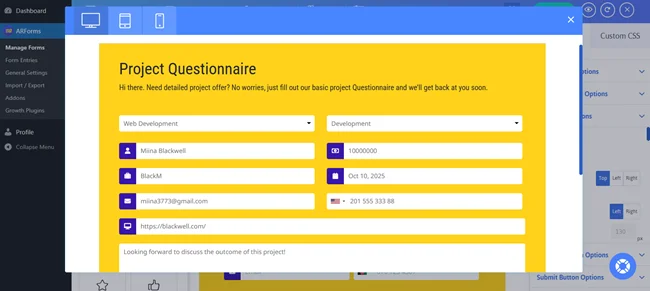
Now just click on the [] shortcodes on the top bar in the ARForms form editor.
From here, copy the shortcode of your questionnaire form and paste it anywhere in your WordPress site.
Whether it’s a blog post, landing page, or sidebar widget, you can paste your questionnaire form anywhere you like.
Best Practices for Designing an Awesome WordPress Questionnaire Form
Now that you have seen how easy and simple it is to create a WordPress questionnaire form. It’s time to take a glance at the best practices for designing an amazing questionnaire in WordPress.1. Keep it Short and Simple
Keep it short and focused for a smooth flow. Furthermore, we suggest you to only ask for what you need to know. And also keep your questionnaire short so people won’t have to spend more than a minute to figure it out.For example if you are making a questionnaire form with more questions, we recommend you to break them into small section with multi-step form so it can be easier to finish
2. Clear and Easy Language
Use clear and simple language. Plus, avoid using any confusing technical terms which beginners may not understand. Worth remembering the easier your questions are to read, the more accurate the answer will be.3. Make your questionnaire forms smart
You can always use conditional logic to make your questionnaire form more interactive. Showing the questions based on your customer’s previous response is a smart move to avoid lengthy forms.For example if someone ticks “Yes” to give open feedback, then only show them the textbox, otherwise no.
4. Order Questions Logically
Whenever you build a questionnaire layout, make sure to put them in an encouraging order. Now we don’t want people to get bored while filling every field they don’t want, so make sure to never mark all fields as required.With the right form questions order, you can keep your users away from leaving your form half way
5. Test Before Embedding
We recommend you to always test and see how your WordPress questionnaire form will appear. With ARForms, you can test and see how your form will appear across different devices with just a simple toggle on.In a nutshell, a well designed WordPress questionnaire form not only gathers data, but also encourages your customers to talk out their opinions honestly and fill the form.
Creating Your Own Questionnaire Form With WordPress Is a Snap!
With ARForms, build your WordPress questionnaire forms in the easiest, simplest and stylish way.Till now, ARForms is the best WordPress questionnaire form plugin, perfectly loaded with 50+ templates and sample forms including questionnaire forms too.
The best part? ARForms goes beyond basic features, offering exclusive styling options, advanced spam protection and data collection features too.
So what are you waiting for? Boost your online business and understand your audience to make data driven smart decision with ARForms questionnaire form
FAQs
How do I create a questionnaire on my website?
You can create a questionnaire on your WordPress website by just starting with ARForms. ARForms is a WordPress questionnaire plugin for creating questionnaire forms so just install and activate it first. Next, head straight and choose a ready-to-go form template and sample form. Customize and configure your questionnaire form the way you want and at last, embed it in your WordPress page or post.How to layout a questionnaire?
To layout a questionnaire form in WordPress, you first have to decide what your aim and goal is. Next, identify your target audience and choose the types of questions in a logical order.What is the best WordPress form builder?
ARForms is the best WordPress form builder for building and customizing your online forms with zero code. What makes it the best WordPress form builder is its robust set of advanced features and super easy to use drag and drop form editor.Can I collect questionnaire responses in Excel or Google Sheets?
Yes, absolutely! You can export all your questionnaire form responses in CSV or into Google Spreadsheet with ARForms.Is there a WordPress questionnaire plugin free?
Yes, indeed. ARForms offers a lite version which is 100% free, including basic features for creating and customizing your questionnaire forms. But If you want more advanced features like conditional logic, file uploads, and styling controls, you can upgrade to the ARForms pro anytime you want.Is a survey and a questionnaire the same thing?
Unlike surveys, Questionnaires are a set of fixed questions for collecting data directly from your audience. Thus, we can say all surveys are questionnaires, but not all questionnaires are surveys.