
How to Make a User Review Form for WordPress Website


Wondering how to allow users to leave a review on your WordPress site? You’re in the right place!
Gathering and showing off user reviews is important for building trust and selling more. So comes out WordPress user review form in the game.
A user review form on your WordPress site allows your visitors to leave feedback without any hassle. Best of all, even statistics show 88% of customers trust online reviews. Plus, 93% of them actually read user reviews before any purchase.
So in this tutorial, we’ll show you how to make a user review to add to your WordPress website. Now let’s dive in!
Well, that will not do because customers are smart. The stats says 68% of customers are skeptical if a business has no negative or real-looking user reviews.
So yes, you need to add real user reviews on your site. And for that, you need a user review form.

Afterall, adding testimonials on different pages on your WordPress site can make your visitors trust you more and understand your product better by reading real reviews.
No matter whether you own an eCommerce store or software company, user reviews can actually boost your sales in ways you never imagined.
Thus, here are some good reasons for adding a user review form to your WordPress site:
If you are worried about spam messages and reviews, let ARForms take care of it.
ARForms is a powerful WordPress form plugin that offers advanced invisible spam protection and Google reCAPTCHA to protect your WordPress user review forms.
So without any further ado, let’s hop on and make a user review form for your site.
Thus, we’ll be using our most loved, ARForms for making WordPress user review form today.

First, you’ve to head straight to ARForms official website and download the preferred version of this if you haven’t already.
We recommend you to go with ARForms Pro so you won’t have to get the Post Creator Addon separately. But if you want to go with ARForms Lite (free version), then also no problem.
You can get Post Creator Addon for ARForms separately as well at just $16 for lifetime.
Do not worry as you’ll understand exactly why we made you download this Post Creator Addon later. For now, let’s focus on installing and activating ARForms in your WordPress dashboard.
For that, you just have to follow these simple steps:
So first you have to go to ARForms → Manage Forms → Add New Forms.

Once you are in, you’ll see three options to move forward. Either you can build a customer review form from scratch with a blank form. Or just go with a template or sample form to get started.

So for now, we’ll go with a feedback form template to get started. Later you can customize it as you want.

This template will include everything you need and want in your user review form.
If you take a second and look over ARForms super simple drag and drop interface, you’ll see all 33+ form fields listed on the left side panel.
And all the extensive styling options are listed on the right side panel.
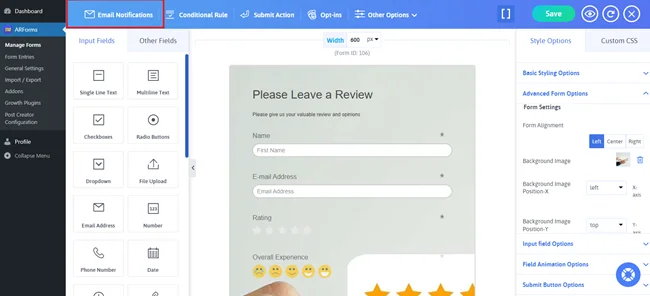
On the top, you can see advanced options like Email notifications, conditional rules, submit action, Opt-ins and other options which we will configure later.

For creating a user review form out of it, we just need to delete a few fields. Fields like:

And so many like that, if you don’t feel like keeping them in your WordPress review form.
Best of all, you can also add any new form field you like in this review template such as Likert scale, checkbox, or radio button. Still we suggest you keep it as simple and short as possible for more form submissions.
To help you make a right choice, here are the form fields you can additionally add:

Still you can also customize it to make it a perfect user review form to match your website’s looks and feel.
Look to your right and you’ll see a bunch of styling options to style your WordPress user review form the way you want.

Once all set, do not forget to click on “Save” to save your amazingly well designed form’s progress.
Here you can select and configure setting such as:
Furthermore, you can also set conditional logic to show and hide fields based on their answer.
Let’s say a user doesn’t wish to type a review by only giving a star rating. So you can ask them first if they want to write a review or not then only show the comment textbox. Still you can also mark the comment/review textbox optional.
It assures users their feedback has been submitted and looks professional too.
For this, ARForms sends automatic instant notifications via Email, SMS and WhatsApp.
By default, it sends email notifications so for that head to “Email Notifications”.
Next, you just have to tick on “Send an automatic response to users after form submission”.
After that, select the field to send Email and type the subject of your email. You have to fill all the details as well as the form notification message.
Once done, simply click on “Ok” to save and set your form notifications settings.
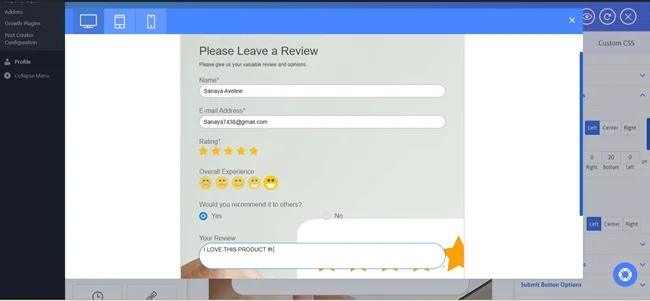
The best part? You can also see and test all these changes live by using ARForms quick live preview. Just toggle around and you’ll see how your WordPress user review form will appear across all devices.

And thinking, who’s gonna do that? ARForms Post Creator addon.
That’s exactly why we made you get in the first place.
First head over to ARForms → Post Creator Configuration → Configure New Form after saving your current form.

Next, you have to choose the user review form you just created.

For fields, you can map them as you want to show off your users’ reviews. For me, we are going to map titles with user names so it can build trust. Next in description we’ll map the actual review content. and then continue as you like.
As for status, you can select “pending review” if you want time to check each one of them before it goes live. Or we recommend to go with “Published” if you wanna make it live on instant.

You can also configure advanced settings like Advanced Fields, Post Format, Post Categories and Post Custom Fields.
Once all set, click on the Save button in the end.

Now it will automatically create posts from form submissions. So you can save your time as well as keep your reviews organized on your website.
ARForms allows you to add your form directly into your WordPress site. All you have to do is go to “Manage Forms” again.
From here you can copy the shortcode of your user review form.
Now simply paste it on any specific post, page, or a widget. On saving, you will easily see your form and review live!
With ARForms, building and customizing customer review forms is super fast, easy and simple.
Unlike many other form plugins, ARForms lets you separate powerful addons such as Post Creator Addon to take your WordPress site to the next level! Plus, we offer ARForms Pro with access to all mind blowing features,
Addons and third party integrations for lifetime.
So get ARForms right away and let people leave reviews on your website for more sales!
Recommended Articles:
Gathering and showing off user reviews is important for building trust and selling more. So comes out WordPress user review form in the game.
A user review form on your WordPress site allows your visitors to leave feedback without any hassle. Best of all, even statistics show 88% of customers trust online reviews. Plus, 93% of them actually read user reviews before any purchase.
So in this tutorial, we’ll show you how to make a user review to add to your WordPress website. Now let’s dive in!
Why Add a User Review Form to Your WordPress Site
We know, we know most of you are thinking why bother making a user review form when we can just add user reviews ourselves?Well, that will not do because customers are smart. The stats says 68% of customers are skeptical if a business has no negative or real-looking user reviews.
So yes, you need to add real user reviews on your site. And for that, you need a user review form.

Afterall, adding testimonials on different pages on your WordPress site can make your visitors trust you more and understand your product better by reading real reviews.
No matter whether you own an eCommerce store or software company, user reviews can actually boost your sales in ways you never imagined.
Thus, here are some good reasons for adding a user review form to your WordPress site:
- Reviews acts as social proof so they build trust
- Both positive and negative reviews influence your potential customer’s buying decision
- Products with reviews often shows more conversion rates compared to those without
- User generated content like user reviews gives your SEO a quick boost
- Easy to gather customers feedback on product or service
- Testimonials are good reviews can be used as marketing materials
- Enhance your user engagement and interactions
If you are worried about spam messages and reviews, let ARForms take care of it.
ARForms is a powerful WordPress form plugin that offers advanced invisible spam protection and Google reCAPTCHA to protect your WordPress user review forms.
So without any further ado, let’s hop on and make a user review form for your site.
How to Make a User Review Form for Your Site
Step 1: Install ARForms and the Post Creator add-on
ARForms is the most feature-rich WordPress form builder plugin that allows you to create countless types of online forms without any coding skills.Thus, we’ll be using our most loved, ARForms for making WordPress user review form today.

First, you’ve to head straight to ARForms official website and download the preferred version of this if you haven’t already.
We recommend you to go with ARForms Pro so you won’t have to get the Post Creator Addon separately. But if you want to go with ARForms Lite (free version), then also no problem.
You can get Post Creator Addon for ARForms separately as well at just $16 for lifetime.
Do not worry as you’ll understand exactly why we made you download this Post Creator Addon later. For now, let’s focus on installing and activating ARForms in your WordPress dashboard.
For that, you just have to follow these simple steps:
- First, go to the site of ARForms to download it.
- Next, go to your WordPress dashboard to add the ARForms plugin.
- Navigate to Plugins → Add New → Upload.
- Here, upload the downloaded zip file of ARForms.
- Once everything is done, you will see the options of ARForms Plugin on the left-side panel of WordPress.
Step 2: Create the User Review Form
After exploring ARForms friendly user interface and features, it’s time to put your head straight on how to create a user review form.So first you have to go to ARForms → Manage Forms → Add New Forms.
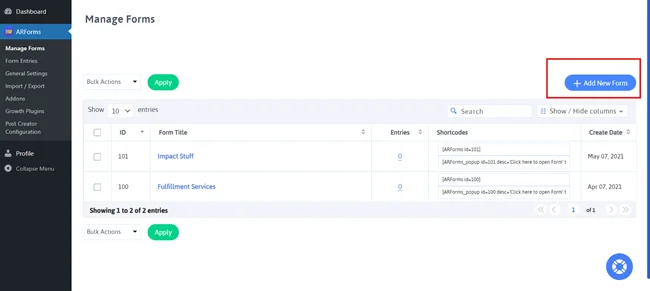
Once you are in, you’ll see three options to move forward. Either you can build a customer review form from scratch with a blank form. Or just go with a template or sample form to get started.
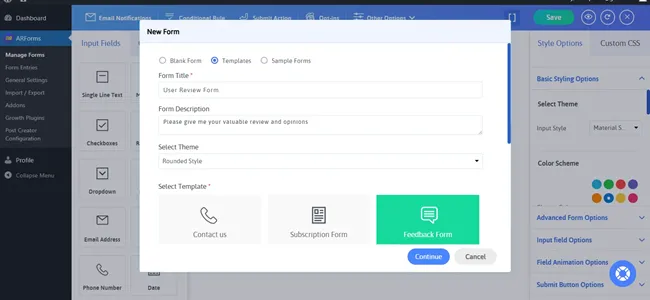
So for now, we’ll go with a feedback form template to get started. Later you can customize it as you want.
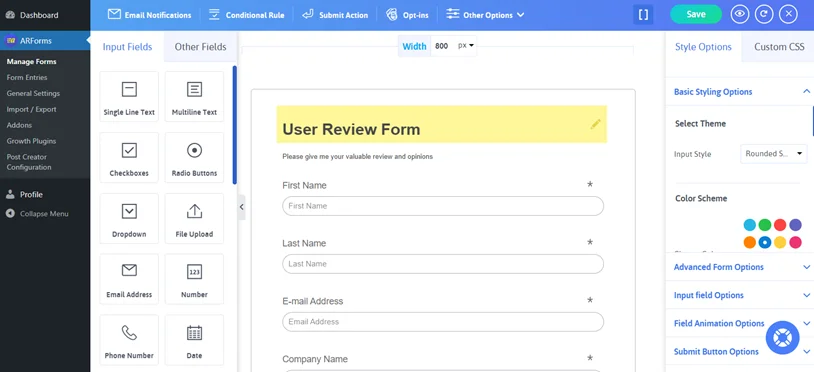
This template will include everything you need and want in your user review form.
Step 3: Customize Form Design
Next, it’s time for you to make any kind of changes you want in your template.If you take a second and look over ARForms super simple drag and drop interface, you’ll see all 33+ form fields listed on the left side panel.
And all the extensive styling options are listed on the right side panel.
On the top, you can see advanced options like Email notifications, conditional rules, submit action, Opt-ins and other options which we will configure later.
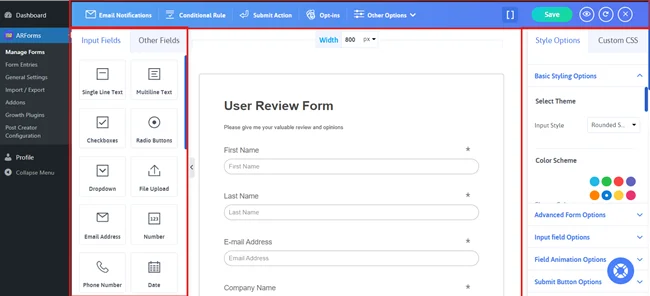
For creating a user review form out of it, we just need to delete a few fields. Fields like:
- Company name
- website
- subject
- How did you find us
- How often do you visit our site
- Please rate the quality of our site design
- What was your favorite part
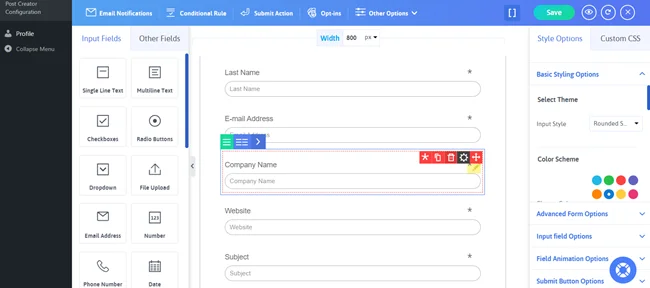
And so many like that, if you don’t feel like keeping them in your WordPress review form.
Best of all, you can also add any new form field you like in this review template such as Likert scale, checkbox, or radio button. Still we suggest you keep it as simple and short as possible for more form submissions.
To help you make a right choice, here are the form fields you can additionally add:
- Name
- Star Rating
- Smiley
- Would you recommend it? (Radio Button)
- Text box (Comment/Review)
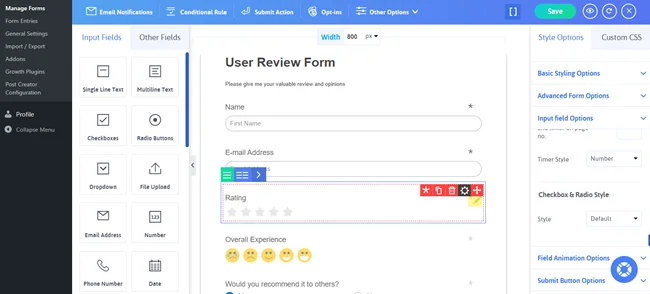
Still you can also customize it to make it a perfect user review form to match your website’s looks and feel.
Look to your right and you’ll see a bunch of styling options to style your WordPress user review form the way you want.
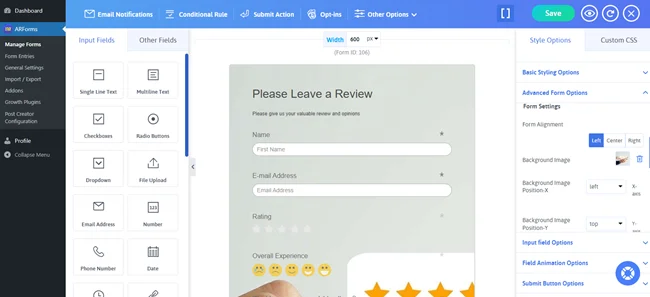
Once all set, do not forget to click on “Save” to save your amazingly well designed form’s progress.
Step 4: Configure Your Form Settings
Next, head straight to Other Options → General Options.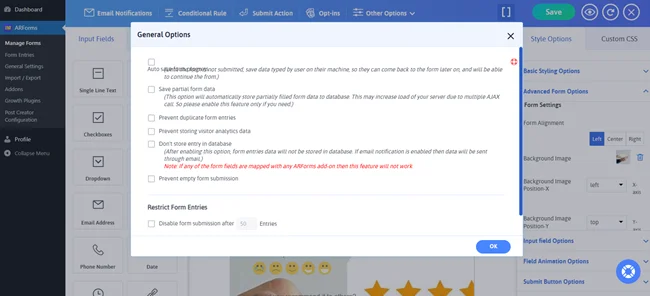
Here you can select and configure setting such as:
- Auto Save Form Progress: Even if user didn’t submitted the form, it’ll save the data typed so user can come back and continue
- Save Partial Form Data: Automatically store partially filled form data to database
- Prevent Duplicate Form Entries: Makes sure no same customer or visitors gives same review twice
- Prevent storing visitor analytics data: It simply disable ARForms built-in feature that automatically collects user info such as a user’s IP address and country
- Don’t store entry in database: It allows you to not store any form entries in your database
- Prevent empty form submission: By ticking this option, your user review form never goes empty
- Restrict Form Entries: You can easily limit form entries for a specific number of entries or date yet it is not needed so no worries
Furthermore, you can also set conditional logic to show and hide fields based on their answer.
Let’s say a user doesn’t wish to type a review by only giving a star rating. So you can ask them first if they want to write a review or not then only show the comment textbox. Still you can also mark the comment/review textbox optional.
Step 5: Setup Your WordPress Review Form Notifications
Sending notification after a successful form submission is a great way to confirm the submission for both – admin and customer.It assures users their feedback has been submitted and looks professional too.
For this, ARForms sends automatic instant notifications via Email, SMS and WhatsApp.
By default, it sends email notifications so for that head to “Email Notifications”.
Next, you just have to tick on “Send an automatic response to users after form submission”.
After that, select the field to send Email and type the subject of your email. You have to fill all the details as well as the form notification message.
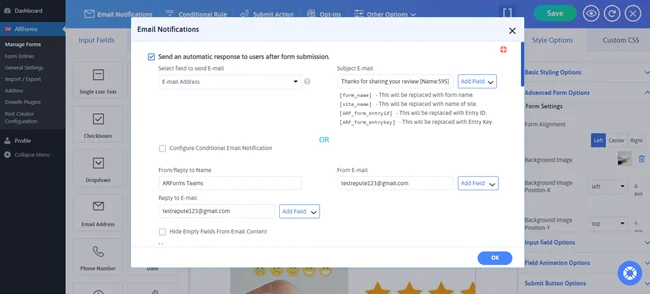
Once done, simply click on “Ok” to save and set your form notifications settings.
The best part? You can also see and test all these changes live by using ARForms quick live preview. Just toggle around and you’ll see how your WordPress user review form will appear across all devices.
Step 6: Connect the Form to Posts Using Post Creator
Now that you’ve built your user review form perfectly, we are going to make each review submission appear on your website automatically.And thinking, who’s gonna do that? ARForms Post Creator addon.
That’s exactly why we made you get in the first place.
First head over to ARForms → Post Creator Configuration → Configure New Form after saving your current form.
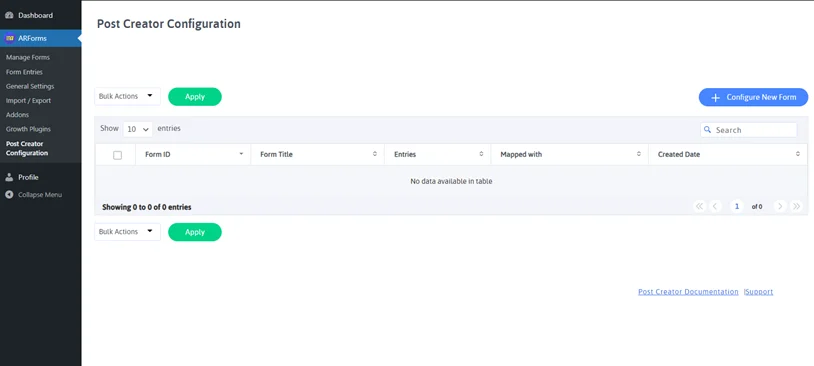
Next, you have to choose the user review form you just created.
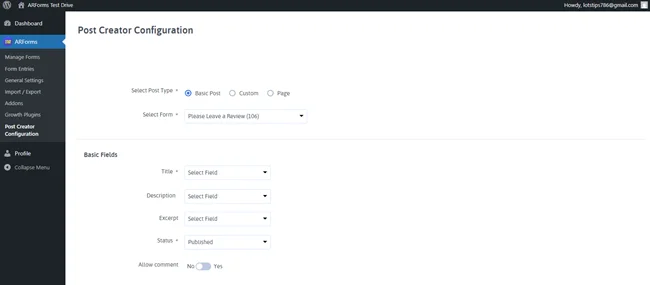
For fields, you can map them as you want to show off your users’ reviews. For me, we are going to map titles with user names so it can build trust. Next in description we’ll map the actual review content. and then continue as you like.
As for status, you can select “pending review” if you want time to check each one of them before it goes live. Or we recommend to go with “Published” if you wanna make it live on instant.
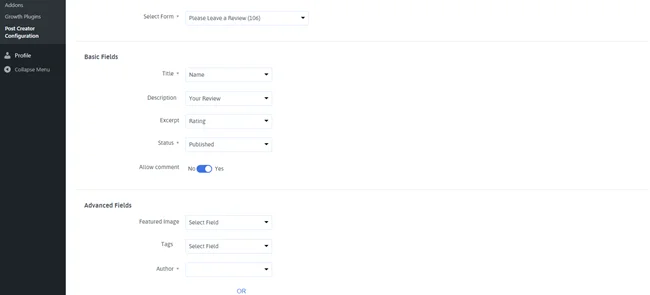
You can also configure advanced settings like Advanced Fields, Post Format, Post Categories and Post Custom Fields.
Once all set, click on the Save button in the end.
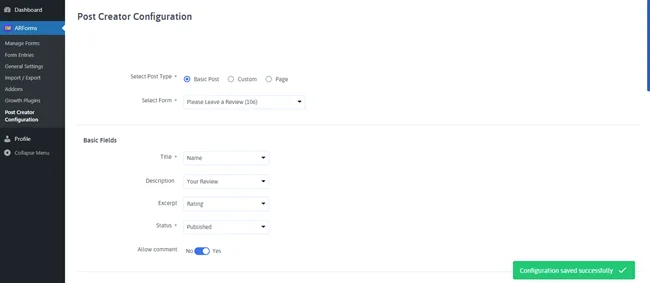
Now it will automatically create posts from form submissions. So you can save your time as well as keep your reviews organized on your website.
Step 7: Publish the Form on Your Website
Finally your WordPress user review form is set to go!ARForms allows you to add your form directly into your WordPress site. All you have to do is go to “Manage Forms” again.
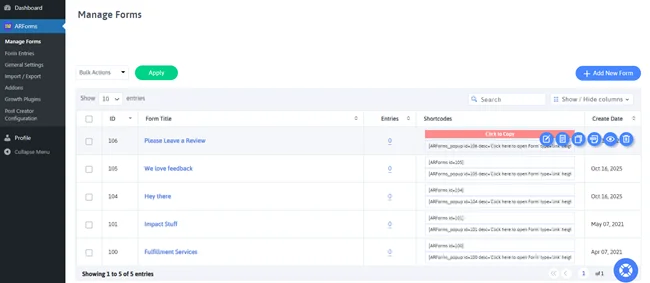
From here you can copy the shortcode of your user review form.
Now simply paste it on any specific post, page, or a widget. On saving, you will easily see your form and review live!
Final Thoughts
User reviews act as a social proof for your business website. Here’s why, adding a user review form is the best solution.With ARForms, building and customizing customer review forms is super fast, easy and simple.
Unlike many other form plugins, ARForms lets you separate powerful addons such as Post Creator Addon to take your WordPress site to the next level! Plus, we offer ARForms Pro with access to all mind blowing features,
Addons and third party integrations for lifetime.
So get ARForms right away and let people leave reviews on your website for more sales!
FAQs
How do I add reviews to my WordPress website?
You can add reviews to your WordPress website by creating a user review form using ARForms. Once you create the user review form, configure ARForms Post Creator Addon. Later , you’ll have to embed the form on your site via ARForms shortcode. Now all the submitted reviews can appear as posts automatically.How can people leave reviews on my website?
People can leave reviews on your website by filling out the user review form. You have to add it anywhere you like on your website using ARForms. After that, your visitors can easily share their review.How to generate customer reviews?
To generate and gather more customer review on your customer review form, you have to:- Encourage your customers to leave a review
- Make the customer review form simple and short
- Send them direct link of your WordPress review form
- Ask your visitors to give a review at the right time
- Give some offer or free reward to encourage more form submissions
How do I prevent spam in WordPress review forms?
By using ARForms for creating your WordPress review forms, you can easily prevent form spam. ARForms has advanced invisible spam protection and Google reCAPTCHA to protect your WordPress user review forms.Recommended Articles: