How to Allow User Submitted Posts in WordPress Forms


Ever wished your visitors could publish their own posts without accessing your dashboard? With ARForms, that’s completely possible – and easier than you think!
No matter whether you run a Blog website, news site, review site, forums or a community site, user submitted posts can boost your conversions and engagement with ease.
The good news? ARForms is an all-in-one WordPress form plugin that can make this happen. You can easily create WordPress pages or posts immediately after each form submission automatically.
In this article, We’ll show you exactly how to allow users to submit posts in WordPress forms. So let’s explore how !
Why Should You Enable Front-End Post Submissions in WordPress?
Before we jump into how to allow user-submitted posts in WordPress forms, let’s explore the key benefits of letting users share their own content.
The answer is simple and straightforward so first we’ll let the stats speak.
By allowing front end post submissions in WordPress, you can have more user generated content on your WordPress site. And, user generated content increases your conversion rates up to 29% alongside boosting engagement by 70%.
What’s more, stats suggest Blog sites that include user generated content are 2.5 times more likely to be shared. Even adding user reviews on your website can actually skyrocket the sales of business by 30%.
Still not convinced? Allow us to change your mind with some more benefits of adding user submitted posts on your WordPress forms.
By allowing WordPress front end post submissions, you can:
- Increase your users engagement as they can easily contribute content without brain wracking with WordPress backend
- Streamline workflow for guest bloggers, remote writers or your community members via a user friendly interface
- Easily manage, approve and pipeline submissions without granting any backend access to anyone
- Enhance your content volume and encourage more submissions
- Improve user experience with well designed front end forms
How to Enable User Submitted Posts to Your WordPress Site
Step 1: Install and Activate the ARForms Plugin
ARForms is the all-in-one WordPress form builder plugin to create all kinds of WordPress forms with zero coding skills. It comes with a super simple drag and drop live form builder and extensive styling options to create your forms the way you want.
So if you don’t have ARForms, there’s no better time than now to get it.
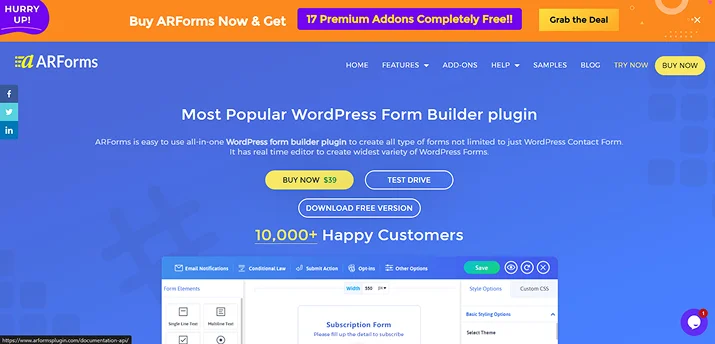
But if you already got ARForms, you can just hop on the next step.
To install ARForms, go to the official site of ARForms and download your preferred version.
Next, go to your WordPress dashboard to add the ARForms plugin.
Later, you’ve to navigate to Plugins → Add New → Upload. Here, upload the downloaded zip file of ARForms.
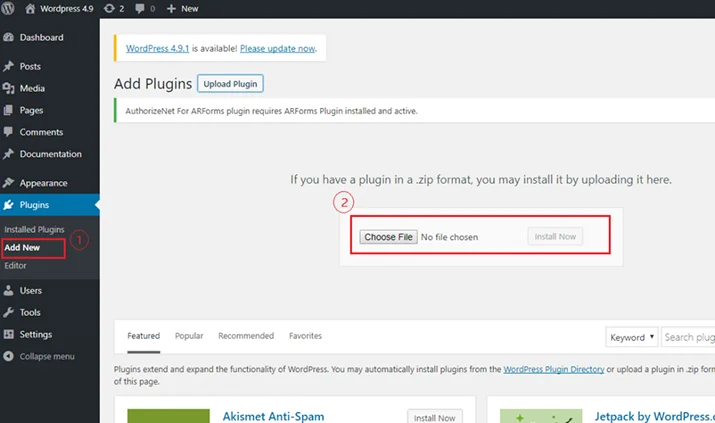
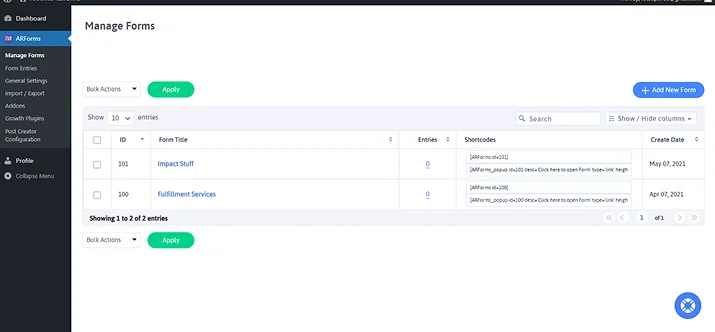
Once everything is done, you will see the options of ARForms Plugin on the left-side panel of WordPress.
Want some more help? Take a quick look at our user friendly guide to install and activate ARForms in seconds.
Step 2: Install and Activate the Post Creator Addon
Well, for our ARForms Pro users, there’s good news! You don’t have to install the Post Creator Addon separately as it is also included right in your package.
For users who went ahead with ARForms Lite, you can either upgrade to ARForms Pro or get Post Creator Addon for ARForms separately as well at just $16 for lifetime.

What’s more interesting is downloading and activating Post Creator Addon is just as easy as getting started with the ARForms plugin. So here’s how to install and activate post creator addons for ARForms:
- First of all, download the ARForms Post Creator Addon from CodeCanyon
- Next, go to your WordPress dashboard
- From here on, go to Plugins → Add New → Upload
- Lastly, click on choose file and browse the download package from CodeCanyon. When the plugin uploads successfully, click on the Activate Plugin link.
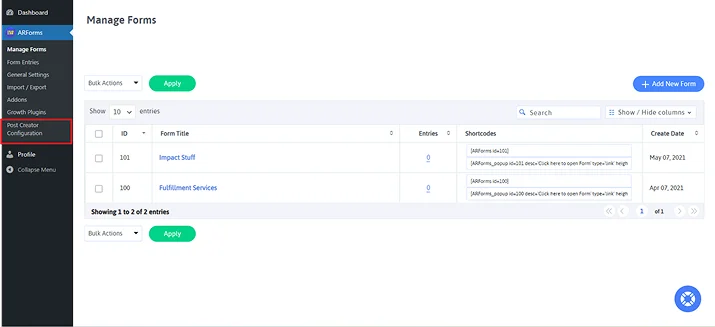
That’s it! Once activated, you will be able to see the “Post Creator” link under the “ARForms” menu in the admin menu list.
Step 3: Create a New Form for Post Submission
Next, it’s time to create a new WordPress form for allowing user submitted posts on your WordPress site or page.
First we recommend you to get familiar with the ARForms friendly user interface and explore its all panels. This way, it’ll be easier for you to navigate around.
Don’t worry as the panels and menu are super to navigate and get used to.
Thus, first thing first, you have to go to ARForms → Manage Forms → Add New Forms.
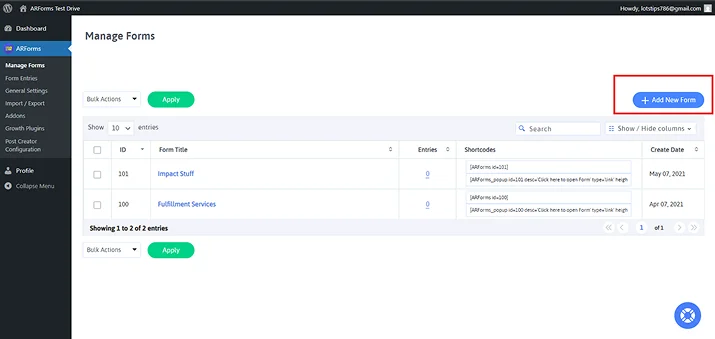
Once in, you’ll see three options to move forward. Either you can build a customer review form from scratch with a blank form. Or just go with a template or sample form to get started.
To make things easier, we’ll show you how to create a WordPress form from scratch.
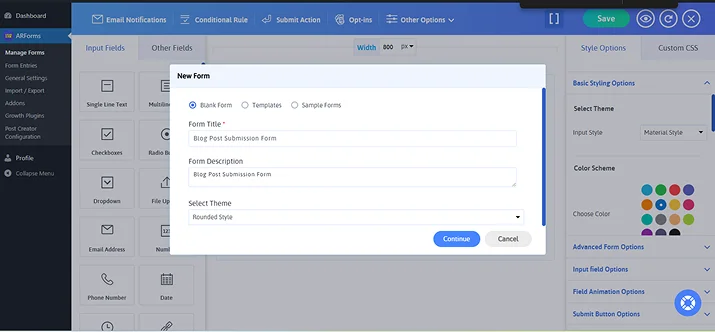
Next, you’ll be redirected straight to ARForms live form editor. From here, you can design your WordPress form to match your website’s look and feel.
Here you can easily access over 33+ advanced form fields, extensive styling options, conditional rules, submit actions and so much more.
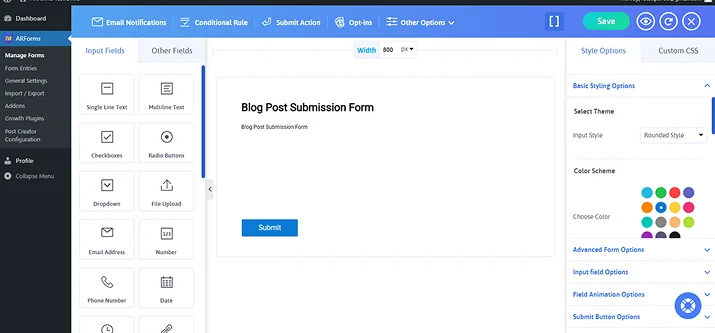
In order to create a form that allows user submitted posts, here are the fields you need to add:
- Post Title
- Author Details (Name, Email, or Bio)
- Post Content (Rich Text Field)
- Featured Image
- Category (Optional)
- Tags (Optional)
- Submit Button
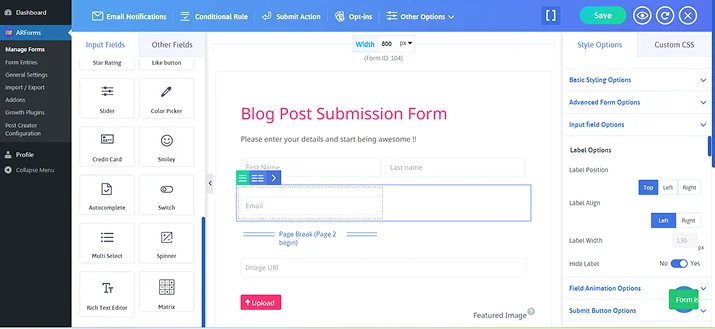
To make things easier for users, you can make a multi-step form too.
Moreover, you can also customize it to make it a perfect blog submission form to match your website’s looks and feel.
Look to your right and you’ll see a bunch of styling options to style your WordPress form the way you want.
Thus, style the font, background, label, fields, submit button or whatever you want to make your form more engaging and stylish.
Once all done, do not forget to click on “Save” to save your amazingly well designed form’s progress.
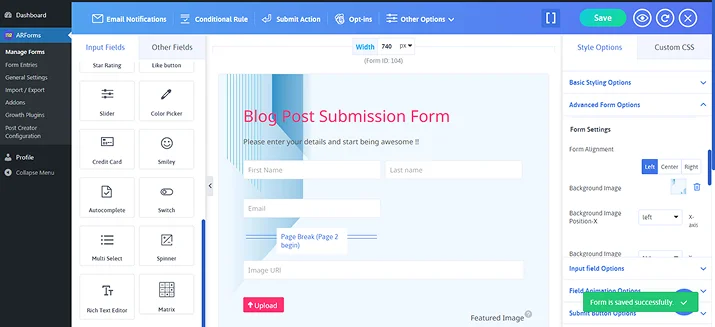
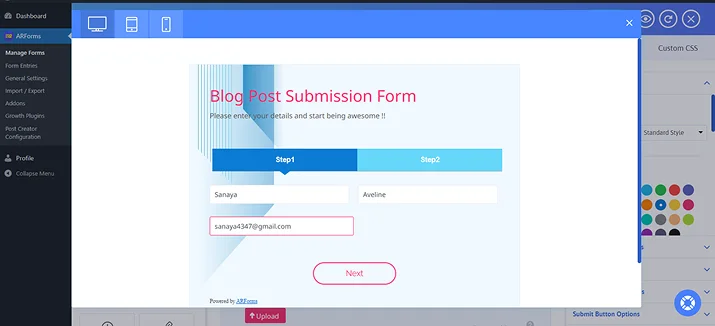
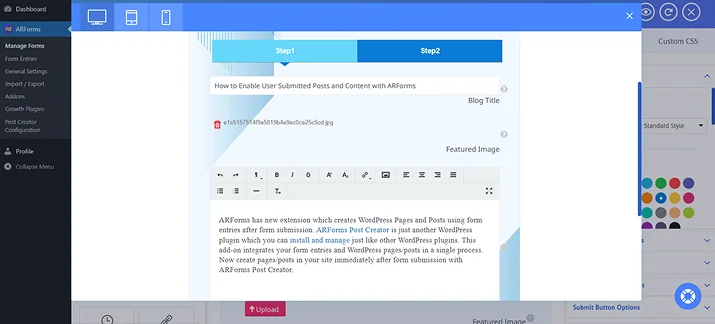
What’s more, if you wanna see how your blog submission WordPress form appears on live, even before publishing it. ARForms lets you do it with ease.
Simply click on the eye icon on the top right side and you’ll see ARForms quick live preview. From here, you can toggle across multiple devices to see your form working in real life.
Step 4: Configure the Post Creator Settings
Now that you’ve built your blog post WordPress form perfectly, we are going to allow these user submitted posts in your WordPress form.
This way, whenever anyone submits a blog post via your WordPress blog submission form, it’ll automatically appear on your WordPress site or page.
First head over to ARForms → Post Creator Configuration → Configure New Form after saving your current form.
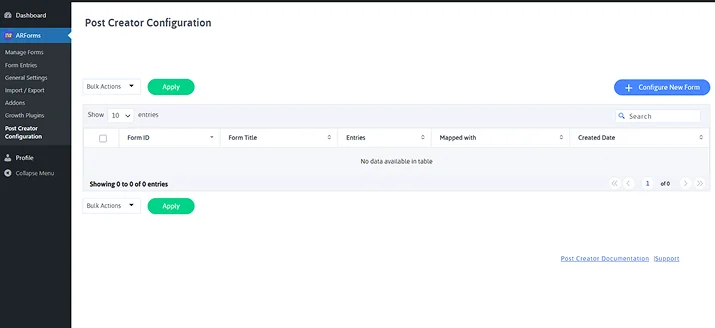
Next, you have to select the post type and choose the WordPress form form you just created.
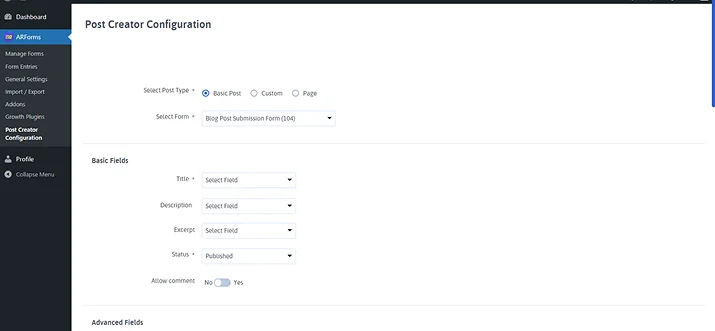
For fields, you can map them as you want to show the post content on your website.
SImply put, map the Title with your Post Title field, Description with Post Content field and then continue as you like.
As for status, you can select “pending review” if you want time to check each one of them before it goes live. Or we recommend to go with “Published” if you wanna make it live on instant.
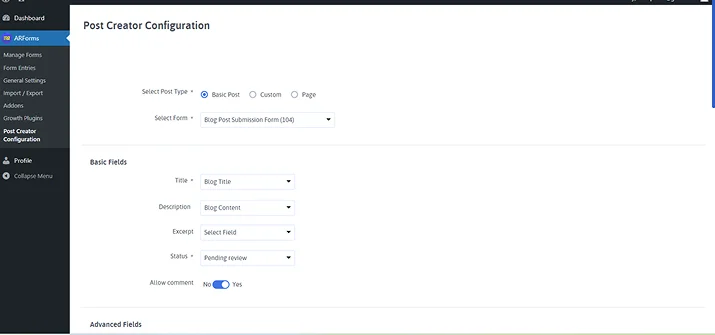
You can also configure advanced settings like Advanced Fields, Post Format, Post Categories and Post Custom Fields.
In advanced fields, we suggest you map your featured image to the featured image field (Upload file field) we created in our form. You can also map Tags and Categories field if created.
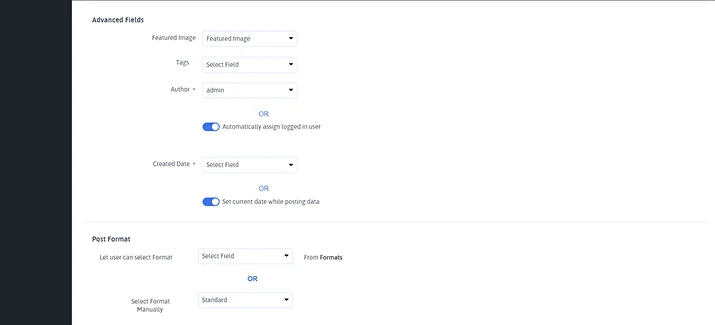
Once all set, click on the Save button in the end.
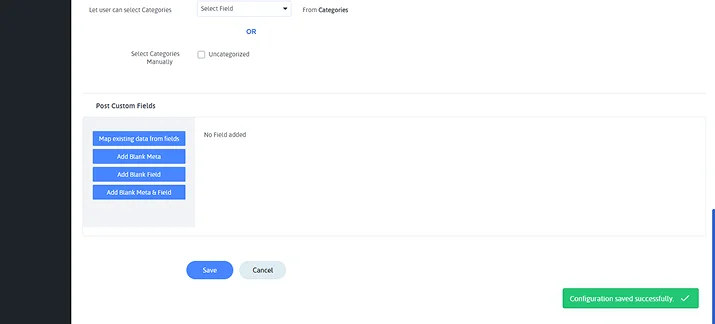
Now it will automatically create posts from form submissions. So you can save your time as well as keep your user submitted posts organized on your website.
Step 5: Publish the Form on Your Website
Finally your user content submission post form is set to go!
ARForms allows you to add your form directly into your WordPress site or page with just a simple shortcode. All you have to do is go to “Manage Forms” again.
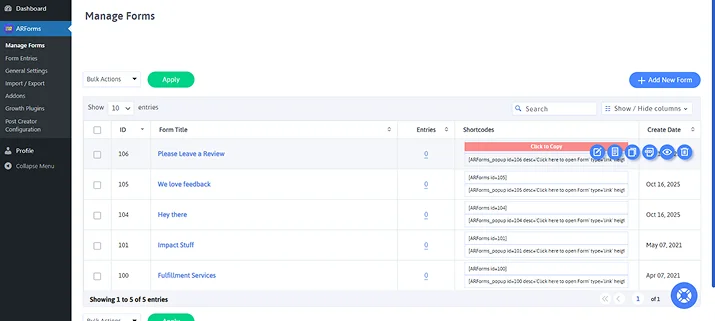
From here you can copy the shortcode of your user review form.
Now simply paste it on any specific post, page, or a widget. On saving, you will easily see your form and review live!
Why Choose ARForms for Frontend Post Submission?
User submitted posts on WordPress website helps you boost user engagement as well as your web traffic. So it’s a win-win for both sides.
Users get to post their own content, leading towards more engagement. While, you can boost your sales easily as 84% of consumers are more likely to trust a brand’s marketing if it features UGC.
With ARForms, building and customizing user submitted post forms is super fast, easy and simple.
Unlike many other form plugins, ARForms lets you get separate powerful addons such as Post Creator Addon to take your WordPress site to the next level! Further, With ARForms Pro, you can get access to all advanced features, addons and third party integrations for lifetime.
Furthermore, ARForms is the best WordPress form plugin for creating user submitted posts forms because:
- It is super easy to use with a beginner friendly interface
- Offers extensive styling options and over 33+ advanced form fields
- Over 24+ third party tools and plugins seamlessly works
- Support to add custom fields for WordPress pages or posts pages
- Easy to set featured image
- Fully Featured FrontEnd Posting Tool
- Allow to create WordPress pages, WordPress standard posts as well as custom posts
So what are you waiting for? Get ARForms right away and take your WordPress site to the next level with user submitted posts!
You May Also Like:
- 5+ Best reCAPTCHA Alternatives For Your Contact Forms
- Best Design Practices for WordPress Contact Forms
- Multi-page WordPress Forms: The Best Long Form Recommendation
FAQs
How do I allow users to submit posts on WordPress?
You can allow users to submit posts on WordPress By using WordPress form plugins like ARForms.
ARForms is an all-in-one WordPress form plugin that allows user submitted posts on your WordPress via Post Creator Addon. Just create your post submission form and configure post creator addon settings. Once all set, every form submission automatically becomes a new WordPress post.
How to get notification that someone submitted a form in WordPress?
To get notification when someone submits a form in WordPress, you can use ARForms. It allows you to send instant automatic email, SMS or WhatsApp notifications for both user and admin. Simply enable admin notifications to get an instant alert each time someone submits a form.
How do I approve or review user submitted posts before publishing?
In ARForms, if you want to approve or review user submitted posts before publishing, simply choose the post status as “Pending Review” in the Post Creator Configuration settings.
Can I let only registered users submit posts?
Yes, Absolutely! You can use the ARForms User Signup Addon to let users register or log in before submitting a post.