How to Send PDF After WordPress Form Submission


Everyone wants a concrete record of what they ordered, registered for, or requested. And sending a PDF is one of the easiest ways to give them exactly that.
Creating beautiful and professional-looking online forms is one thing. Making sure those forms don’t leave your staff stuck with manual data entry or messy email threads is another.
No doubt, you could use third-party apps or software to automate the process. But then you’re sending that form data somewhere else. And that matters when you’re dealing with contracts, signed agreements, application forms, insurance forms, or any other submission containing sensitive user information.
That’s why generating PDFs directly from WordPress form submissions can make the whole process much easier and more secure. Your form collects the details, your form plugin converts the submission into a PDF, and your staff doesn’t have to manually create a document for every entry. Two problems solved with one simple workflow. Sounds smart, right?
This guide will walk through how to send PDF files after WordPress form submissions using ARForms.
With that said, let’s get right in!
What You Need To Send a PDF After WordPress Form Submission
To follow along, you will need ARForms and the PDF Creator add-on. The addon handles the PDF generation and lets you attach PDF to emails sent after a form submission.
You’ll also need your email notifications configured if you want to send the PDF to the person who filled out the form or to an admin.
That’s really all you need. After the PDF Creator addon is active, its settings become available inside your form, and you can start deciding what the document should contain and where it should go.
All in all, you need:
- WordPress site
- ARForms installed and activated
- ARForms PDF Creator Addon
Now let’s see how ARForms actually work to send a PDF after WordPress form submission.
How To Send a PDF After WordPress Form Submission
The ARForms PDF Creator generates a PDF from each form entry and can attach it to the email sent after submission. You can also decide whom to send the pdf after WordPress form submission: the admin, the user or both.
Install and Activate the PDF Creator Add-on
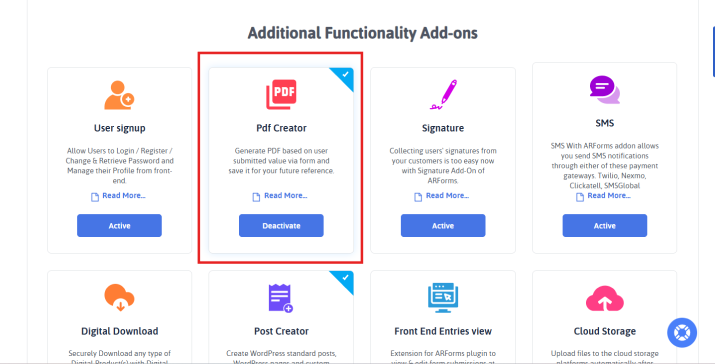
Let’s start by installing the PDF Creator add-on for ARForms.
You can install the addon via your WordPress dashboard or upload it manually as per how you normally install ARForms extensions.
After it’s installed, activate PDF Creator For ARForms from the WordPress Dashboard → Plugins. After activation, you’ll see a new PDF Template Editor option in your WordPress dashboard. You’ll use that later when you want to control how the generated PDF looks.
Enable PDF Attachments For Email Notifications
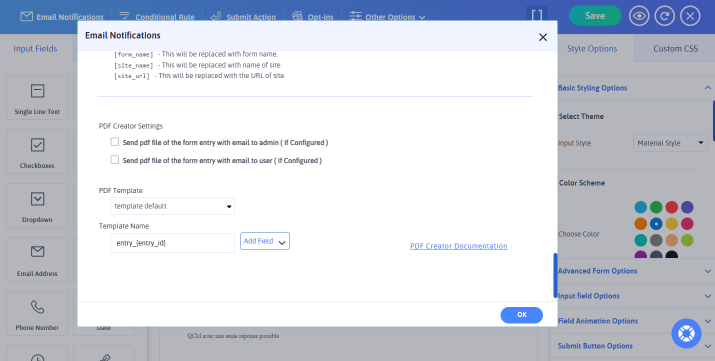
Now open the form you want to generate PDFs for and go to Email Notifications under Auto Response Email.
This is where ARForms lets you decide whether a generated PDF should be included with the email.
Look for the PDF Creator settings and enable the option you need:
- Send a pdf file of the form entry with email to admin (If Configured) to send the PDF to the administrator.
- Send a pdf file of the form entry with email to the user (If Configured) to send the PDF to the person who submitted the form.
The PDF is generated from that particular form entry and added to the corresponding email as an attachment.
One thing worth knowing up front: the email notification itself needs to be configured. The PDF setting tells ARForms to attach the generated document to an email; it doesn’t create or send an email on its own.
Apart from this, which option you choose depends on who actually needs the PDF file.
If you’re collecting applications, registrations, or orders for internal processing, sending the PDF to the admin gives your team a ready-to-use copy of each submission.
If the person filling out the form needs a record of what they submitted, enable the user option. This can be useful for registration confirmations, application copies, order details, and similar submissions.
And if both sides need a copy, you can enable both options.
How To Customize the PDF Generated From Your Form
With ARForms, you never have to settle for anything less. This WordPress form builder plugin lets you control the document’s layout and the information that appears in it from its PDF Template Editor.
You can start with one of the available templates or create your own, then add the form fields and other submission details you want to include.
Choose or Create a PDF Template
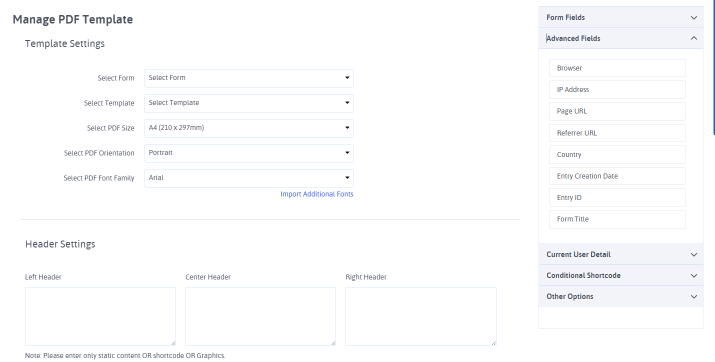
Open the PDF Template Editor and select the form you want to customize.
ARForms offers a default PDF template so you can use one of those as a starting point. If you need a different layout, feel free to create a new template as per your business’s style.
This becomes useful when the PDF needs to serve as an actual document rather than just a copy of the submitted form. A registration form, for example, might need a simple confirmation layout, but an application or order form will need a more structured PDF format.
Moreover, you can also give your templates names that make them easier to find later.
Add Form Fields and Submission Details
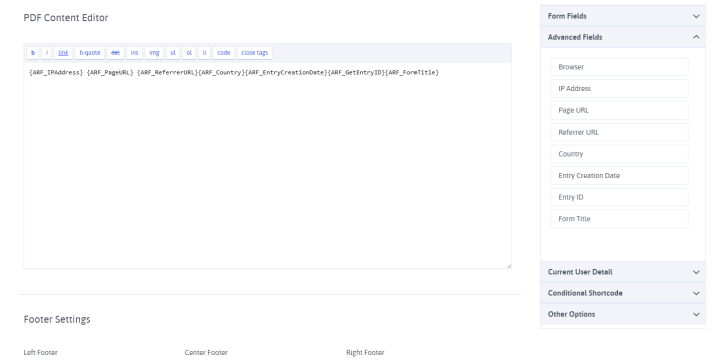
After you’re done editing the template, the available form fields appear in the editor so you can add the information you want to the PDF.
ARForms uses shortcodes to pull submitted values into the generated document. This means the same template can be reused for every submission while the actual PDF is populated with that submission’s information.
You can also add other details available through the PDF Creator, such as the Entry ID and Entry Creation Date, when those details are useful for keeping track of individual submissions.
You don’t need to add every available field just because it exists. The better approach is to include the information someone actually needs when they open or file the document.
Customize the Header, Footer, Logo, and Page Numbers
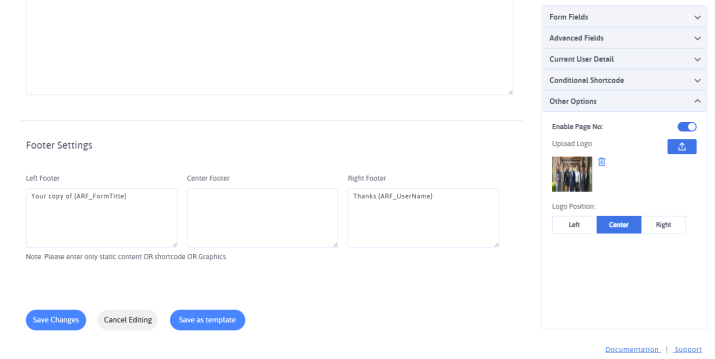
The PDF Template Editor also gives you control over the parts of the document outside the main form content.
Thus just use the Header settings to add details such as your company name, address, contact information or other text that should appear at the top of the PDF.
The Footer settings can be used for additional information and page numbers. Afterall, the page numbers are useful when a longer submission spans multiple pages.
Apart from this, you can also upload a logo and choose its position in the document.
These details matter when the PDF is going to be shared, printed, or stored as an official record. A logo and properly formatted header can turn a basic form submission into something that looks much closer to a finished document.
How To Download a PDF of a Form Submission
Sending a PDF by email is useful when someone needs a copy immediately, but you also need to retrieve a submission later.
ARForms lets you access the generated PDF from your form entries, so you don’t have to rely on old email notifications whenever you need a copy.
- Simply open the relevant form’s entries in your WordPress dashboard.
- Find the WordPress form submission you want.
- You’ll see a PDF icon in the entries list.
- Click it to access the PDF generated from that submission.
This is useful for things like old applications, registration records, order submissions, or any other form entry that your team may need to pull up later.
The important distinction is that you’re not creating the PDF file from scratch each time. ARForms has already stored the WordPress form submission pdf template. Thus now you can generate or export PDF when you need it.
What Can You Use WordPress Form PDFs For?
You can use WordPress form PDFs to automatically turn submitted form data into neat, printable and professional documents.
In other words, you can use WordPress form to automate how you handle paperwork. Rather than copying data manually from your website into a PDF document, these tools automatically turn form submission into clean, professional PDFs.
Here’s how you can use them:
Registrations and Application Forms

- Student or member onboarding: Automatically generate an official registration confirmation or a student ID profile right after someone signs up.
- Job applications: Turn a candidate’s submitted form into a resume format to easily share it with your hiring team.
- Event Passes: Send attendees a downloadable PDF ticket or event badge with their specific registration details.
Orders, Quotes and Confirmations
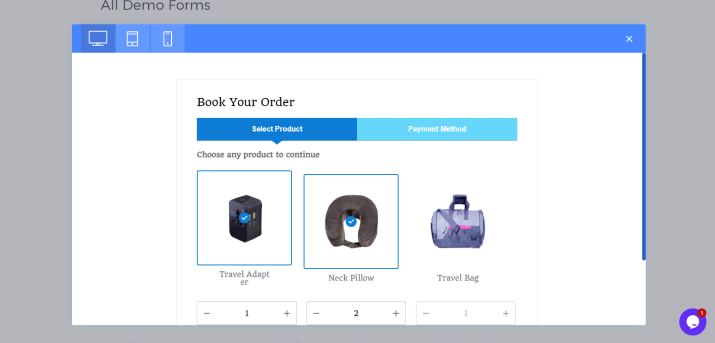
- Instant invoices and receipts: Send customers a beautifully formatted receipt or formal PDF invoice right after they make a product.
- Price estimator: If you offer custom services, a user can plug in their needs, and the system will instantly email them a structured, professional price quote.
- Booking confirmations: Give your clients an official PDF or booking voucher they can save to their phone.
Agreements and Other Documents
- Contracts and NDAs: Let clients fill out their details, check an “I agree” box, and instantly generate a legally binding contract with their digital signature embedded
- Certificates of completion: If you run an online course or workshop, you can automatically get a personalized certificate with the user’s name and completion date the moment they finish.
- Liability waivers: Perfect for gyms, event spaces or rental businesses. Guests sign online, and a formal waiver PDF is archived for your legal records
Conclusion: Turn WordPress Form Submissions Into PDFs
In a nutshell, sending WordPress form submissions into a PDF file is really easy when you use a dedicated form builder plugin like ARForms.
Its PDF Creator addon allows you to make your customer PDF layouts with zero coding. Then, attach them to email notifications for the admin or user. No matter whether you need to send clean receipts to your customers or keep organized records for your team, setting up this workflow saves you a good amount of time. Plus, you never gotta worry about manual data entry errors again.
So what are you waiting for? Get ARForms and turn your WordPress form submissions into PDFs.
You may also like