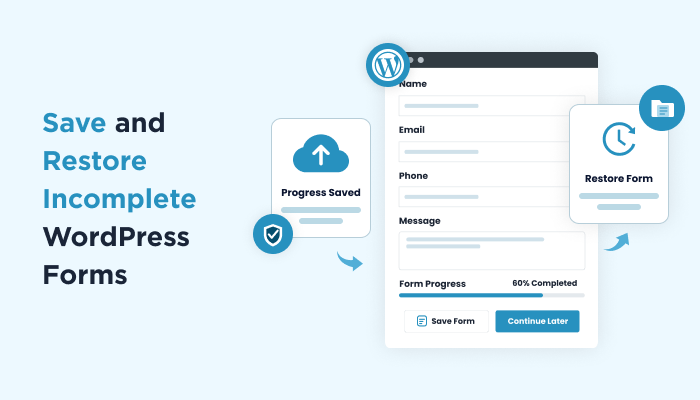
A Guide to Saving and Restoring Incomplete WordPress Forms


Getting someone to open your form is one thing. Getting them to complete every field and submit it is another. The longer the form, the more opportunities there are for visitors to stop midway through.
Don’t feel this is because your form is poorly designed. The real culprit? Life happens.
A visitor can get distracted by a phone call, need to rush into a meeting, or… simply run out of time. And when they come back to find their progress gone, starting all over again feels like more trouble than it’s worth.
Thus, they leave without submitting the form, and you miss out on a potential lead.
But what if your form could remember where they left off? What if they didn’t have to start from scratch?
With an auto save form progress feature, visitors can pick up right where they left off. This makes it easier to complete your WordPress forms even when life gets in the way.
This guide shows you how to save and restore incomplete WordPress forms using ARForms.
Why Should You Save Incomplete WordPress Form Data?

Saving incomplete form data makes it easier for your visitor to complete the long forms. Although we understand long forms already have low completion rate, yet sometimes they are unnecessary.
In simple words, this auto-save progress feature helps you lower your form abandonment rate and give people a better reason to come back and finish what they started.
For instance, someone is filling out a client questionnaire on your website. They have already answered several questions but then they get interrupted and have to close the page. If all their progress is lost, they may not feel like filling out the entire form again.
With a feature that saves form progress, they can return to the online form and pick up from where they left. No need to start from scratch. This can be especially helpful when your forms need visitors to provide detailed information, such as payment form, order form, booking form.
Apart from what we discussed, here are a few reasons why saving incomplete WordPress form data can come in handy.
Lower Form Abandonment
Most of the time, visitors leave a form just because they don’t have enough time to finish it. It happens. Sure, it might’ve happened to you as well. If they have to start all over again when they return, they may decide it’s not worth the effort. Thus saving the form progress makes it easier for them to complete the form later.
Improve the User Experience
Nobody wants to enter the same details twice. Whether someone is filling out a registration form, a job application or a detailed questionnaire, being able to restore previously entered info makes things less frustrating (Because filling a long form itself is never a fun experience, so at least make it a little convenient.)
Avoid Losing Valuable Form Data
Visitors spend several minutes answering questions and entering their details before leaving the page. Saving their progress preserves that work so they don’t have to repeat the whole process when they return.
Make Longer Forms Easier to Complete
Never force visitors to complete everything in one sitting. Save form progress to give them more flexibility to finish at a convenient time.
Give Potential Leads Another Chance to Convert
If you’re using forms to collect inquiries, qualify leads or request consultations, an unfinished WordPress online form = missed opportunity. Thus make it easier for visitors to return and complete the form. Capture submissions that would otherwise be abandoned using this ARForms auto-save form progress feature.
Of course, saving incomplete form data doesn’t guarantee that every visitor will return or submit the form. But, it can remove one common obstacle by making sure visitors don’t have to repeat work they’ve already done.
If you’re using ARForms as your WordPress form plugin, you can enable its Save Partial Form Data option to help visitors restore previously entered information when they return to the form. And the best part? ARForms understands how important this feature is so you need no extra addon for this.
This auto-save form progress feature is in-built in ARForms.
Let’s now see how to enable this option and test whether it works as expected on your WordPress site.
How to Save and Restore Incomplete WordPress Forms With ARForms
ARForms Pro comes with an in-built feature to save and restore incomplete WordPress forms.

Let’s start our step-by-step process of enabling auto-save form progress functionality to WordPress forms.
Step 1: Install and Activate ARForms
The first step, of course for those who don’t have a form plugin, is to install and activate ARForms on your WordPress dashboard.
ARForms likes to keep things (like price and setup) simple and forms advanced. Unlike other plugins that only offer this feature in their high-tier plan that might cost you $399 per year, ARForms offers this feature in-built at just $39 for lifetime. No extra addon is needed.
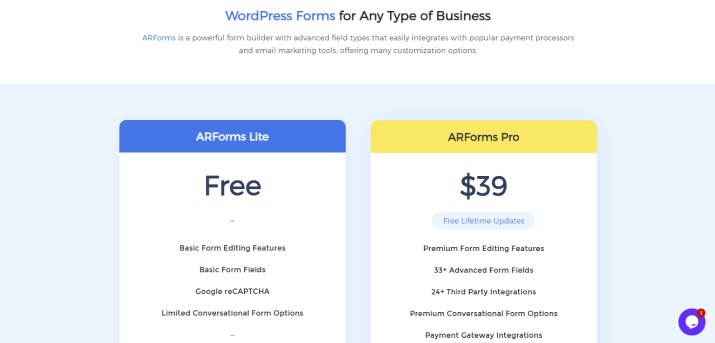
So, simply buy and download ARForms Pro from its official website. Once you’ve purchased the pro version of the plugin, follow the steps below:
- Go to your WordPress dashboard → Plugins → Add New.
- Now look at the upload section, and upload your ARForms Pro zip file there.
- Click the “Install Now”, followed by “Activate”.
…and that’s all! Now you can explore ARForms user interface for a while before jumping on to the next section.
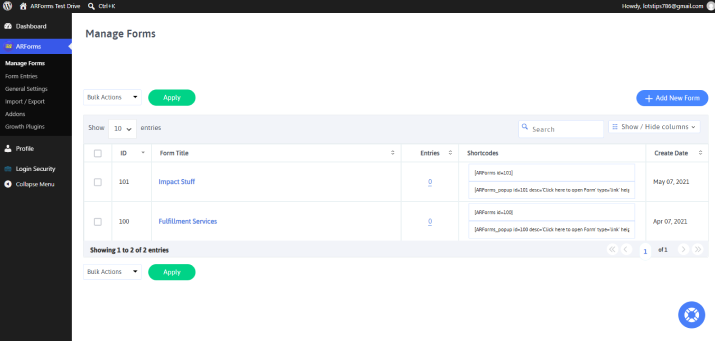
Step 2. Create or Open Your Online Form
For the sake of this guide, we’re going to use a pre-build sample form. But if you already created an online form here, no worries. You can simply edit it.
ARForms comes with 50+ professional-looking sample forms and form templates. And for those who think even these many are not enough (or other form plugins are offering more), let us tell you there’s a difference in quality and quantity.
ARForms gives you quality 50+ sample WordPress forms which you can also check out from here before actually committing to it.
Now to start with the pre-built sample form, go to ARForms → Manage Forms → Add New Form.
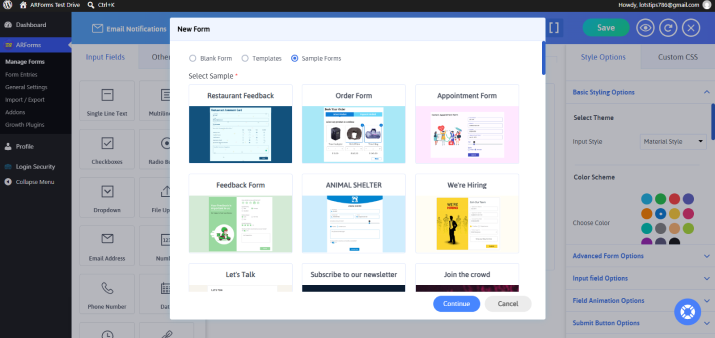
This will take you to ARForms form template and sample form library. Here, you’ll find a bunch of ready-to-go forms, like contact form, survey form, job application form, registration form, order form, payment form, and a lot more.
No worries, you can customize all of these later. And if you want to create everything from scratch, all it will take is a simple drag and drop: Drag the form fields from the Input field list, and drop it on your form. Sounds easy, right? Because it is.
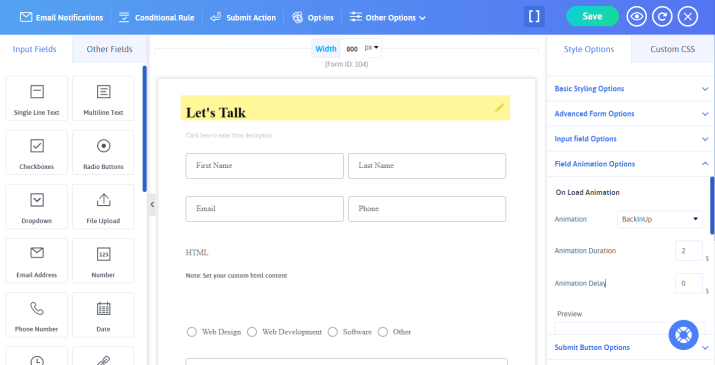
As for our designer friends, ARForms gives extensive styling options, 33+ advanced fields alongside an option to write custom CSS (only if you’re a pixel-perfect designer). If not, ARForms will take care of everything with zero coding.
Step 3: Enable the Auto Save Form Progress Option
We assume your WordPress form is ready to go! So, now it’s time to do the main job: Enable auto save form progress.
- Inside your form editor, you’ll see the “Other Options” tab on the top bar.
- Click on the “Other Options” dropdown menu → General Options.
- Here, you’ll see the first option of “Auto save form progress“. Simply tick the checkbox to enable it.
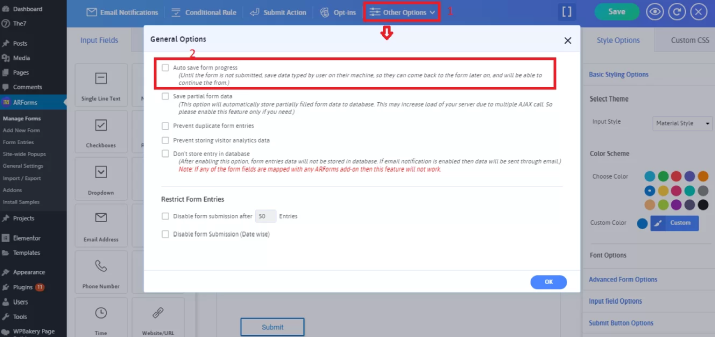
- Lastly hit the “Ok” to save and close the general options.
Step 4: Save Partial Form Data (Optional)
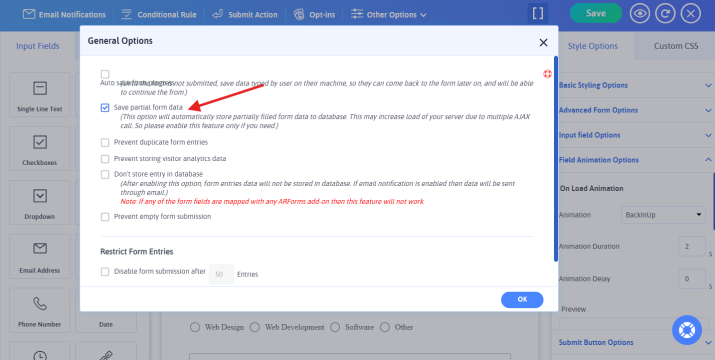
Additionally, if you want to save partial form data, you can do that as well.
Inside the General Options, next to the “Auto save form progress” option, you’ll find the “Save Partial Form Data” checkbox, so simply enable it, and now you can save form data on the visitor’s machine, even if they leave the form without submitting it..
Worth mentioning that this feature is browser-specific and does not work in private browsing mode. Your visitors should return using the same browser they used when they originally filled out the form.
Step 5: Test Your Online Form
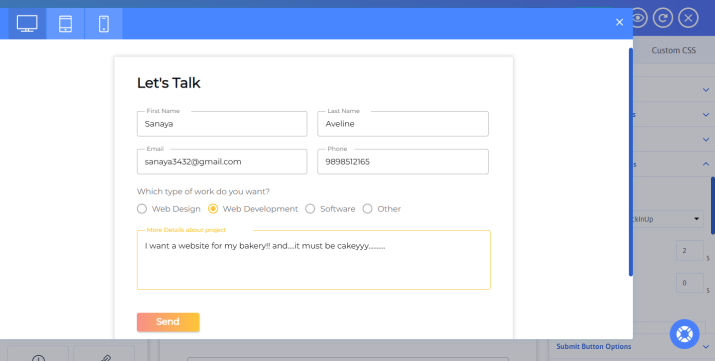
Now that you’ve enabled the option, open the form on your website and fill in your details into a few fields. Leave the form without submitting it, then return to the form using the same browser.
Check whether the information you entered is restored. When we tested, it worked just as it said. Still here are a few things worth testing:
- Leave the form incomplete: Enter some information and leave without clicking Submit.
- Return to the form: Reopen it in the same browser and check whether your previously entered information appears.
- Try a different browser: Check whether the saved details are available there. Since the feature is browser specific, you shouldn’t expect the same saved progress to be available across different browsers.
- Avoid private browsing: ARForms’ this feature doesn’t work in private browsing mode.
One important thing to understand: restoring form data for a visitor and managing incomplete entries in your WordPress dashboard are two different workflows. The Save Partial Form Data option helps visitors recover information they previously entered. If you want to view, filter, export or manage incomplete entries as a website administrator, ARForms has a separate incomplete-entries management feature. You don’t need to set up that feature just to enable saving and restoring from progress.
Don’t Let Incomplete Forms Cost You Valuable Leads!
Every website these days has online forms, even if that’s just a simple contact form. Others might have slightly long multi-step forms such as order forms, payment form, job application form, or registration form.
For those other long forms, the Auto Save Form Progress feature comes in very handy.
It gives your visitors the option to save and restore incomplete WordPress forms whenever they get time. With ARForms’ Auto Save Form Progress feature, users won’t have to start over if they leave a form midway. That means fewer abandoned forms and more chances to boost conversions.
So what are you waiting for? Recover lost form submissions before they’re gone for good with ARForms!
You may also like
- A Useful Guide for Setting Conditional Logic in WordPress forms
- 5 Best WordPress File Upload Plugins for 2026 (Compared)
- SMS vs. Email vs. WhatsApp Form Notifications: Which is More Effective?
FAQs
Where Does ARForms Store Incomplete Form Data?
ARForms stores incomplete or partially filled form data into your WordPress database.
How Do I Save Form Progress in WordPress With ARForms?
You just have to enable the Auto save form progress option inside the ARForms form editor → General Options to save the user’s form progress whenever they leave it half way
Can Users Restore an Incomplete Form After Closing their Browser?
Yes, with ease. Your users can restore and resume an incomplete form after closing the browser. For enabling this in-built feature, you must enable ARForms’ Autosave form progress and Save partial form data features.
Can ARForms Automatically Save Incomplete Form Data?
Yes, Of Course, ARForms can automatically save incomplete form data. It comes with a built-in auto save form progress feature that captures real time data from abandoned or interrupted online forms.