7 WordPress Security Best Practices To Keep Your Site Safe


WordPress security is far more important than you think. With the cyber threats growing day by day in 2025, WordPress site owners are forced to question,”Does WordPress have good security?”
WordPress powers over 43% of all websites worldwide, making it one of the most popular platforms on the internet. While the WordPress core is designed with strong security, the surrounding ecosystem of plugins, themes, and configurations can sometimes introduce vulnerabilities.
That’s why taking WordPress security best practices in action is a must for every WordPress site owner.
Luckily now you don’t have to wrack your brain anymore !
With decades of experience in WordPress, our team of experts have handpicked the WordPress best security practices to keep your site safe.
In this blog, we’ll share the exact same WordPress security best practices we use to keep our WordPress sites safe. So, without further ado, let’s dive right into it.
Why is the WordPress site not secure?
Now before we take a look at the WordPress security best practices, let’s understand the core problem.
The answer is simple. WordPress core security is good, but the ecosystem isn’t.
WordPress is one of most popular content management systems, powering over 43% of websites out there on a global scale. Thus, WordPress is, by far, the most popular way to build any of your websites yet this also makes it a prime target for cybercriminals.
Whether it be a small blog website, community membership site to large eCommerce stores, hackers don’t discriminate. Just one security breach is all it takes to destroy your entire website and brand reputation. A hacked site means lost revenue, broken trust and days of cleanup.
Thus, it becomes your responsibility to protect your WordPress site from such cyber threats.
Well, here are some commons reasons we have heard and seen because of which your WordPress site might not be secure: Here goes the list:
- Using outdated software: Not updating your WordPress themes, plugins or even WordPress itself is like leaving open doors for hackers to exploit your WordPress security.
- Installing poor plugins and themes: As we said, WordPress core security is solid, but the ecosystem isn’t. Always use plugins and themes by a reputed company or developer.
- Weak passwords and usernames: Please don’t tell me your username is like “admin” and password like “123456”. These are some of the common mistakes most WordPress admins and site owners make.
- Lack of Security Plugins: Despite such cyber threats and security vulnerabilities, many WordPress sites still don’t have proper WordPress security plugins.
- No SSL certificate: If your WordPress site doesn’t have a SSL or TLS certificate, it uses unencrypted HTTP protocol which leads to hacking causes and modern browsers showing “Not Secure”.
Always remember hackers don’t need a reason to hack your site. You may think you don’t have any enemies or a giant eCommerce business so hackers will not attack your website. While cyber attacks do feel like personal attacks, yet most cyberattacks are a part of a large-scale DDoS attack. It’s to attack the whole infrastructure in which countless sites get involved at once.
No one can tell where your site will be next.
So it’s your duty to keep your WordPress site safe and for that, let’s take a look at the best WordPress security practices.
7 WordPress Security Best Practices
Use Strong Username & Password Best Practices
I can bet most of the users reading this blog must have at least once used the username “Admin” and password combination something as simple as “123456” or “password”.
That’s why the first WordPress security tip is to always use strong passwords and unique usernames. We are sure still most people use passwords and usernames which are way too easy to predict.
The reason? We forget passwords easily as it’s completely normal.
Let’s be honest that remembering passwords kinda feels like a hassle and can get you even in more trouble if forgotten. This gets even more tricky when working with multiple WordPress sites and remembering each of its passwords and usernames.
However, remember hackers weren’t born yesterday. All it takes is one search on google to get the list of common passwords and common usernames. And sometimes all it takes is a guessing game to know your passwords.
That’s why we recommend using a password manager. A good password manager can help you manage your password effectively. No matter how many WordPress sites you know, you can easily save every password and username in it effectively.
Also, whenever creating a strong password, always make it a mix of uppercase and lowercase letters along with numbers and unique symbols.
Enable Two Factor Authentication (2FA)
Now you have set up a strong password. That’s awesome! And if you already had a strong password, that’s even better.
So now it’s time to enable two factor authentication for a layer of extra security.
Even the strongest passwords can be cracked during the time of a massive DDoS attacks, malware attacks or cyber attacks, yet no need to worry. With two factor authentication, hackers can’t directly get in as they’ll require a second layer of proof like a code from your phone.
Now to enable two step authentication in WordPress, you have two options.
First, you can enable it directly from WordPress. Yes! WordPress understands the importance of keeping your site safe thus it allows you to enable two-step authentication on your WordPress.com account.
- Firstly, go to your WordPress dashboard and go to your profile.
- Now on the left side, you’ll see the “Security” menu option. Just go into it and click on the ” Two-Step Authentication” option.
- Here you’ll get options to choose between “Set up using an app” and “Set up using SMS”.
- Choose whatever option you feel good with and click on “Get Started”.
That’s it! Now you have successfully enabled two-step authentication on your WordPress.com.
However, to protect your WordPress website from cyber attacks and enable 2FA, WordPress by default doesn’t have a 2FA, Yet no worries. We can always use a WordPress plugin for it.
The WordPress plugins such as WP 2FA or Google Authenticator helps you add an extra layer of security to your Website’s authentication process.
Limit Login Attempts & Change Your Login URL
Now that your username and password both are fully secured, it’s time to go an extra mile by limiting login attempts.
We are sure you must have come across multiple websites which limits login attempts. This is one of the best WordPress security practices to protect your website against brute force attacks.
Now if you are wondering how to do that, WordPress plugin directory has got all you need.
Here’s the list of some popular WordPress plugins that help you protect your WordPress site against password guessing by blocking IP addresses after a specific number of failed login attempts.
- Limit Login Attempts Reloaded
- Loginizer
- BestWebSoft’s Limit Attempts
- WP Limit Login Attempts
- miniOrange Limit Login Attempts
We recommend limiting your login attempts to maximum 3 times to keep your website safe.
Plus, one bonus WordPress security best practice is to change your login URL. Mostly the default login page is like /wp-admin. You can create your own custom login URL to hide your site’s entry point more effectively. It is like hiding the entry gate of your home. How can hackers even come when they can’t even find the doors-Smart move!
Keep WordPress Themes & Plugins Updated
Remember even at the start of the blog we have said, “ WordPress core security is good but its ecosystem isn’t.”
That’s why one of the easiest ways to prevent any kind of cyber attacks is to keep your WordPress plugins and themes updated.
Let’s agree hackers are getting smarter day by day but so are the WordPress plugins developers and companies so if you are using a WordPress plugin by a reputed developer or team, you don’t have to worry, just update.
Many times developers or WordPress plugin companies release updates in which they might have fixed a code or bug they thought could be vulnerable for you.
Remember updates aren’t always about adding new features, sometimes they are about fixing the vulnerabilities which we can’t see.
Thus, we always recommend using WordPress plugins from a reputed company and keeping them up to date.
Add reCAPTCHA to your forms
Now you must have understood how important it is to have strong login credentials, updated WordPress plugins, themes and all. So now it’s time to take a look at your online forms.
If you own a WordPress site, then you definitely must have at least one or two WordPress forms. Forms such as contact forms, registration forms, lead forms and many more. Now these are just examples but we are sure you must have more forms on your site than you think.
Well, this online form offers hackers an opportunity for contact form spam, filling your DB with spam entries and in most cases it’s the spammy bots yet you don’t have to worry as we have a solution.
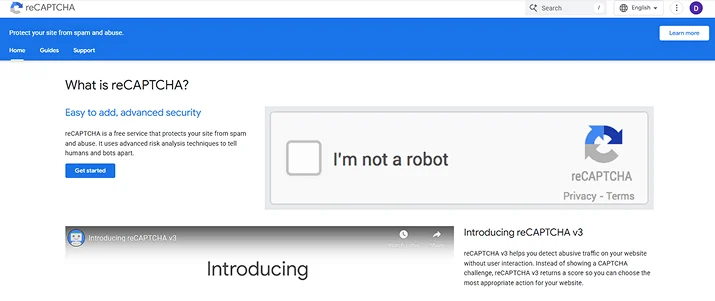
All you have to do is add a Google reCAPTCHA to your WordPress forms.
The Google reCAPTCHA smartly differentiates between humans and bots to protect your online forms from getting spammed.
Worth mentioning, ARForms is a powerful WordPress form builder that not only lets you create countless smart forms but protects them. This plugin comes with an invisible in-built spam protection to detect any kind of suspicious click. Moreover, it also offers the Google reCAPTCHA addon for absolutely free to prevent any kind of contact form spam.
For WooCommerce stores, Email Verification for WooCommerce helps ensure that customers are using valid email addresses by requiring them to verify their email before completing the registration process. This helps reduce fake accounts, prevent invalid signups, and maintain a cleaner customer database.
Install a Reliable WordPress Security Plugin

Sometimes hackers might even trick your system to store the malicious code into your DB and get access to all data, yet you don’t have to worry.
Simply install a reliable WordPress security plugin and let it take the lead.
Most WordPress security plugins come with powerful web application firewalls, advanced malware scanning and login protection to protect your WordPress site.
Here’s the list of the best WordPress security plugins to keep your site safe:
- Wordfence
- Sucuri Security
- Solid Security
Choose whatever Security plugin that fits with your requirements and budget and get started.
Regular Backups & Security Monitoring
Once you have set up your preferred WordPress security plugin, you are now almost safe from any form of cyber attacks.
Yes, almost! Because even the World’s best security plugin isn’t bulletproof so you must need a backup plan.
Now we aren’t saying WordPress security plugins can’t protect. Of course, they can. However, it’s always better to be extra safe than sorry when your brand reputation and website safety is on line.
That’s why the WordPress security best practices also include regular backups and monitoring.
Now this security tip is like a precaution and there’s nothing wrong with it.
In fact, many multi-national and international giant websites also have regular backup of their data. So here are some of the best WordPress backup plugins you can use:
- UpdraftPlus
- BlogVault
- Jetpack VaultPress
- WPvivid
- BackWPup
- Duplicator
These WordPress backup plugins come with a robust set of features such as automatic scheduling, cloud storage integration, site migration, and easy restoration. Or you can also opt for store backup on offsite using Dropbox or Google Drive.
Quick WordPress Security Tips to protect your site in 2025
In a nutshell, WordPress security is one of the far most important for every WordPress site owner. No matter whether you run a small blog website or a large ecommerce store, cyber threats are increasing rapidly day by day in 2025. This makes taking WordPress security best practices even more seriously.
So while concluding, here are some quick WordPress security best practices and security tips to keep your site safe:
- Always keep your WordPress core, themes and plugins updated
- Use Two Factor Authentication (2FA) for extra security
- Do regular backups and security monitoring
- Always use strong login credentials
- Add Google reCAPTCHA to your online forms
- Have a reliable WordPress security plugin
- Use a secure hosting service and if you’re unsure how your current host stacks up, you can check which hosting provider a site uses to compare your setup against faster, more reliable sites.
- Always use HTTPS or SSL
- Limit login attempts and change login URL
- Disable file editing and hide sensitive files
So what are you waiting for? Apply these WordPress security best practices today and secure your WordPress site!
You May Also Like:
- File Upload Security: Best Tips for Online Forms in 2026
- 5 Best Anti-Spam Plugins for WordPress in 2026
- How To Avoid Common Mistake When You Using Form Plugins
FAQs
What are your best practices for ensuring WordPress security?
Here are the best practices for ensuring WordPress security:
- Always keep your WordPress core, themes and plugins updated
- Use Two Factor Authentication (2FA) for extra security
- Do regular backups and security monitoring
- Always use strong login credentials
- Have a reliable WordPress security plugin
- Limit login attempts and change login URL
- Do regular backups and security monitoring
Which of the following is a common WordPress security issue?
These are some of the common WordPress security issues:
- Using outdated software
- Installing poor plugins and themes
- Weak passwords and usernames
- Lack of Security Plugins
- No SSL certificate
How to harden WordPress site security?
Here are some ways to harden your WordPress site security :
- Use secure hosting service
- Always use HTTPS or SSL
- Limit login attempts and change login URL
- Disable file editing and hide sensitive files
- Restrict User Permissions
- Delete unused plugins and themes
How can I make my WordPress website secure?
Always use the WordPress security best practices to keep your WordPress website secure. Moreover, make sure to use a strong login username and password along with a WordPress security plugin.
What is the most popular security plugin for WordPress?
Wordfence Security and Sucuri Security are the most popular security plugins for WordPress. They are known for offering advanced malware scanning and powerful web application firewalls to keep your WordPress site safe.