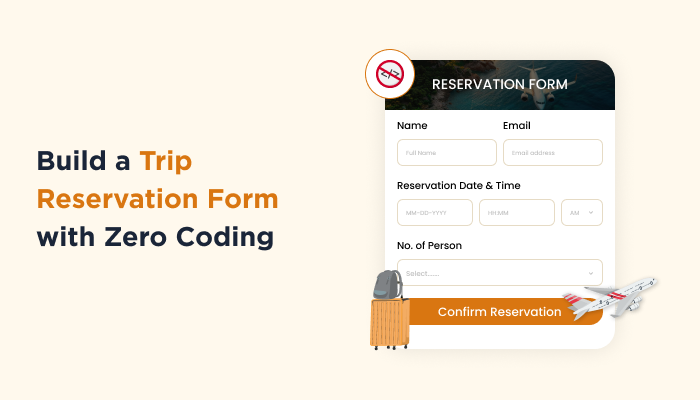
How to build a Trip Reservation Form with Zero Coding


Are you running a travel agency and want to create a travel reservation form? Your search ends right here!
These days, travelers expect a simple and fast way to reserve their seats for a hassle-free journey. Whether they are planning a short getaway or a long vacation, they expect submitting their details through a clear travel reservation form
Keeping that in mind, the smarter approach is using an online reservation form that collects traveler details, trip preferences and payments, all in one place.
The best part? Creating a travel reservation form in WordPress is much easier than most people think.
In this tutorial, we’ll walk through how to create a complete online reservation form step-by-step using ARForms. Plus, you’ll see exactly what traveler information fields, trip details, conditional options and payment fields to add.
Let’s Get Started!
What Is A Trip Reservation Form?

A trip reservation form is an online form that takes reservations and bookings. It is used by travelers to book travel services such as flights, hotels or tour packages.
It helps collect essential traveler information such as:
- Travellers name
- Contact info
- Travel dates
- Destinations
- Special Requests
- Payment Info
….And a lot more to secure a booking. This helps travel businesses manage booking requests in an organized way.
No need to rely on emails or phone calls!
A travel reservation form allows customers to reserve trips directly right from your travel website.
For travel agencies and tour operators, this type of online reservation form helps:
- Collect traveler information in a structured format
- Simplify the booking process for customers
- Lower manual communication
- Organize trip requests automatically
In simple words, a travel booking form acts as the first step in the online booking process.
Who Needs A Travel Reservation Form?

Any business that offers travel related services can benefit from a travel reservation form. Why? because it simplifies how customers submit booking requests, Plus also how businesses manage trip inquiries effortlessly.
- Travel Agencies: Tour and travel agencies use trip reservation forms to collect trip preferences, traveler details and booking requests from customers.
- Tour Operators: Tour companies use reservation forms to manage their group tours, adventure trips and guided travel packages.
- Travel Planners and Consultants: Independent travel planners use online reservation forms to gather client needs before planning customized itineraries.
- Hotel and Resort Travel Desks: Hotels mostly use travel booking forms to let their guests reserve tours, airport transfers or local travel experiences, and earn commissions.
- Event and Retreat Organizers: Organizers who manage destination weddings, retreats or corporate trips can use reservation forms.
Key Fields To Include In A Trip Reservation Form
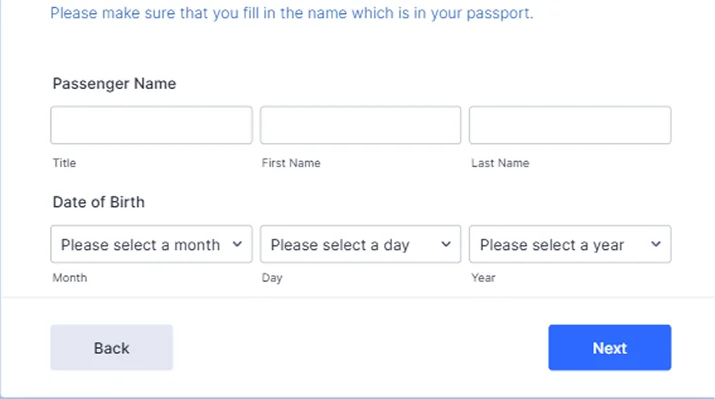
A well-made trip reservation form must capture all important booking information, and never overwhelm the traveler. The goal is simply: Make the booking process easy while collecting enough details to process the reservation.
Thus here are the most important reservation fields to add in your trip reservation form:
1. Traveler Information
It collect basic details about the person making the reservation such as:
- Full name
- Email address
- Phone number
2. Trip Details
This section captures all data about the travel plan such as:
- Destination
- Travel start date
- Travel end date
- Preferred tour package
3. Number of Travelers
Now let your traveler specify how many people will join the trip along with him/her.
You can also include:
- Adults
- Children
- Infants
4. Accommodation Preferences
Optional fields that help plan the stay. Only add if you are offering hotel reservation service too inside your travel plans, and traveller gave right to choose their:
- Room type
- Hotel preference
- Budget range
5. Special Requests
This open text field lets travelers to add extra information such as:
- Dietary requirements
- Accessibility needs
- Custom itinerary requests
6. Payment or Deposit Details
Many travel businesses let their customers or travellers pay a deposit during reservation just to secure the spot:
Thus here are the common fields for it:
- Deposit amount
- Payment method
- Billing details
7. Terms and Consent
At last, a checkbox can be added, confirming that the traveler agrees to the booking terms and cancellation policy.
How To Build A Trip Reservation Form In WordPress
Now there are two most common ways to create a trip reservation form. Either you can use a form plugin or a booking plugin. And the difference is quite simple.
- If you want to create not just a trip reservation form, but a complete booking system around it, Go with a Booking plugin like BookingPress.
- If you want to simply add a reservation trip form in your travel website without any extra hassle, go with a form builder plugin like ARForms.
Form Plugin vs Booking Plugin for Travel Reservation Forms
| Feature | Form Builder Plugin | Booking Plugin |
| Purpose | Collect trip reservation requests. | Manage full booking and scheduling system. |
| Setup Complexity | Simple and quick. | More complex configuration. |
| Booking Calendar | Usually not included. | Built-in calendar and scheduling. |
| Payment Handling | Optional payment fields. | Full booking payments and deposits. |
| Custom Form Fields | Highly flexible. | Limited to booking structure. |
| Best For | Travel inquiry and reservation forms. | Tour operators with real time bookings. |
If your goal is simply to collect traveler details via a trip reservation form, a WordPress form plugin such as ARForms works the best. But if you need real time availability, schedules and automated bookings, a booking plugin would be a better pick.
But, in this guide, we’ll focus on the simpler approach – creating a trip reservation form using a WordPress form builder plugin (ARForms).
Let’s GO!
Step 1: Install and Activate ARForms
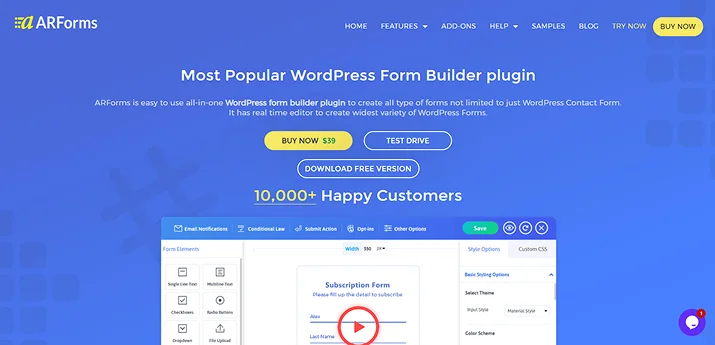
First of all, you need to install ARForms in your WordPress dashboard. The process is simple. Just install it the way you install any other WordPress plugin.
Head over to ARForms official website and download ARForms Pro (You can also opt for the ARForms Lite which is a free version.) Once you downloaded your ARForms plugin, you’ll get its zip file. Keep it and let’s move to your WordPress dashboard:
- Log into your WordPress dashboard if you haven’t.
- Next, go to WordPress→ Plugins → Add New.
- Now you’ll see the option to “Upload Plugin”, so simply head over there and upload your ARForms zip file.
- At last, click on “Install Now”, later “Activate”.
That’s all! Now you’ll be able to see the ARForms icon in your WordPress dashboard side menu.
If you’re stuck somewhere, although we’re sure you won’t, take a look at this beginner friendly guide on how to get started with ARForms.
Step 2: Create a New Form
After exploring ARForms panels and features, it’s time to create your first trip reservation form. It’s way much easier than you think.
All you gotta do is head over to ARForms → Manage Forms → Add New Form.
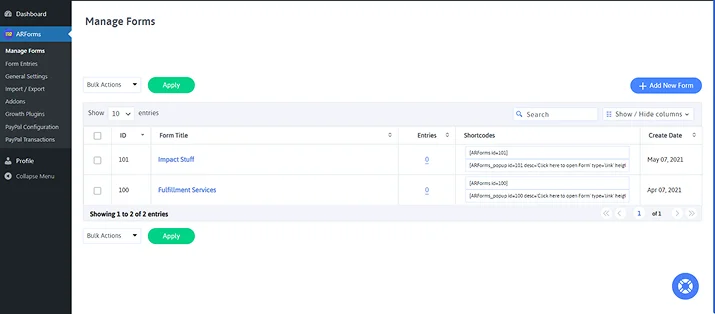
Simply click on Add New Form, and you’ll be redirected to ARForm’s drag and drop form builder. But before jumping right at it, ARForms will show you a popup box with options such as:
- Blank Form
- Templates
- Sample Forms
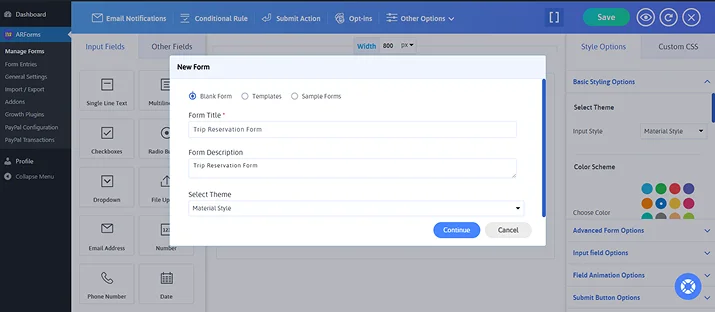
If you don’t know, the reason we chose ARForms only for creating trip reservation forms is because it comes with over 50+ sample forms, professional templates and extensive styling options.
So this is the point you decide whether you wanna go with a ready-to-go sample form, template, or make everything from scratch. To help you build a perfect custom trip form, we’ll go a long way. (But you can also take the shortcut by picking a sample trip form, then customise it your way 😉)
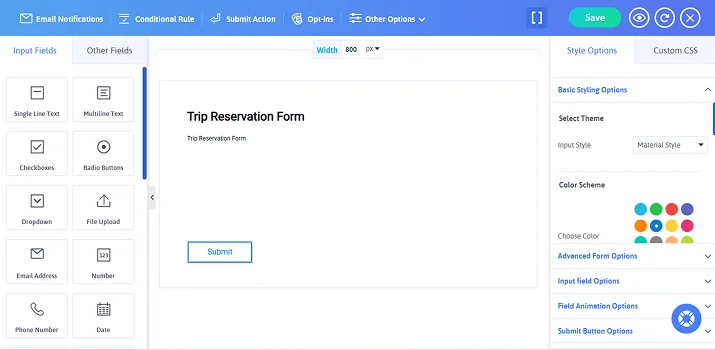
Step 3: Add Traveler Information Fields
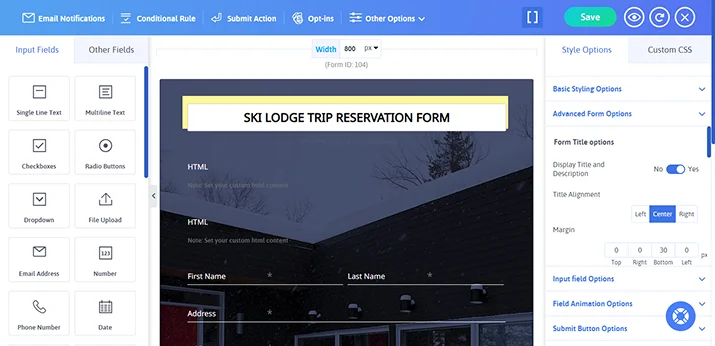
Let’s start by adding form fields for collecting travellers information. ARForms is a simple drag and drop form builder so creating any kind of form is extremely easy. Best of all, it comes with over 33+ advanced form fields to capture every detail properly.
Quick Reminder: Remember the “Key Fields to Include in a Trip Reservation Form” section. Here we already discussed all the basic key form fields you can include in your WordPress trip booking form.
Simply drag the form fields such as below from “Input Fields”, and drop them in your form wherever you like.
- Full Name
- Email Address
- Phone Number
- Country or City
These fields help you identify the traveler and contact them regarding their trip reservation.
Step 4: Add Trip Details Section
Next, to add all the other key form fields we discussed for our trip reservation form, it’s ideal to make a multi-step form.
ARForms lets you make multi-step forms easily.
Just click on Other Fields, then drag-and-drop the Page Break field wherever you wanna break the page. This way, travellers filling the form will not be bored or disengaged.
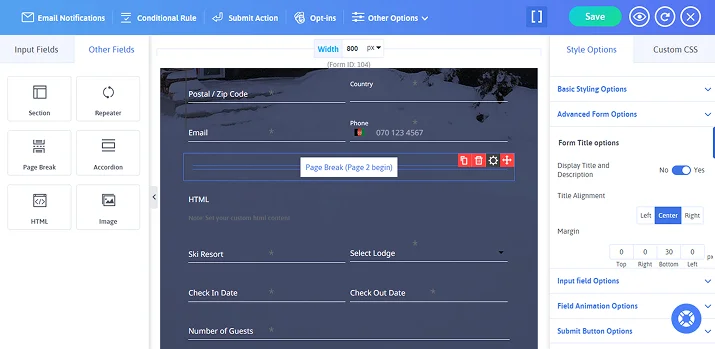
Make each different trip form section for:
- Travel Information (Name, contact info)
- Trip Details (Destination, Departure Date, Return Date, Preferred Tour Package)
- Number of Travelers (Adults, Children, Infants)
- Accommodation (Optional – Room type, budget)
- Special Requests (Any new additions by customer)
- Payment (Payment Method- Online or Card)
- Terms & Condition (Checkbox)
Note: Using date picker fields can make it easier for travelers to select their travel dates. And using a drop down makes it easy to select tour packages.
The best part is all the multi-step forms created with ARForms automatically show progress bars to keep travellers and customers filling the form.
Step 5: Add Conditional Fields for Extra Travelers
Many trips involve multiple travelers. Thus ARForms allows you to add conditional logic to show extra fields when needed.
For adding conditional logic in your travel reservation form, click on “Conditional Rules”. From here, you’ll be able to set If-and-Then conditions easily.
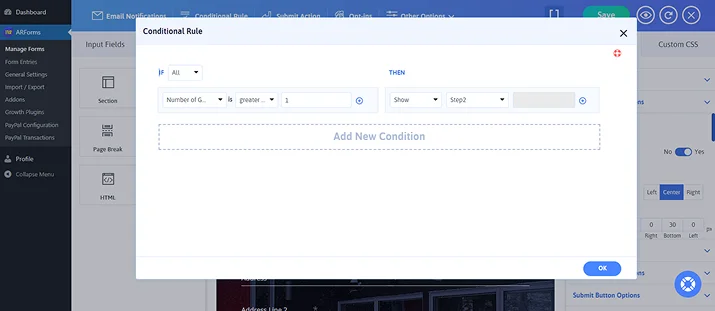
For example:
If the traveler selects more than one passenger, show additional traveler information fields.
This way, you can keep your trip reservation form clean and user-friendly while also collecting complete details.
Step 6: Add Payment or Deposit Fields
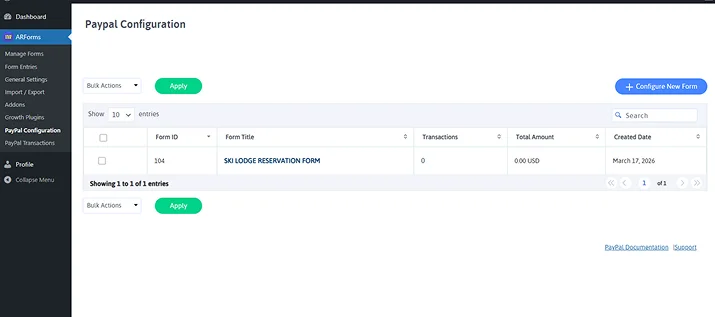
At last of the form, if you are planning to collect deposit or full amount for reservation of trip, ARForms comes with several online payment gateways such as:
- PayPal
- Stripe
- Authorize.net
- PayFast
- Razorpay
- Mollie
- PagSeguro
- And a lot more!
If you have selected the ARForms Pro earlier, all these payment gateway integrations are available. All you have to do is simply activate it, configure your details and you’ll automatically see the option to add online payment in your input form field.
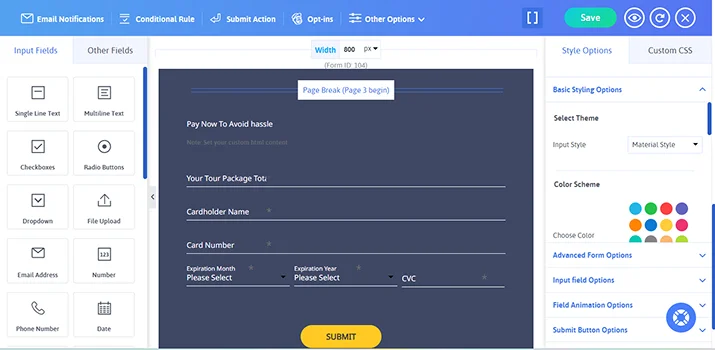
Moreover, ARForms comes with advanced Math logic so all services added earlier will be summed up at the last step for the final payment form.
This helps travel businesses secure reservations instantly rather than later following up manually.
Step 7: Configure Email Notifications
After someone submits the trip reservation form, you should receive an automatic notification. And so does the traveller that their reservation is confirmed.
Setting automatic email confirmation notification in ARForms is super easy. All you have to do is configure click on Email Notification in the above tab, inside your form builder interface.
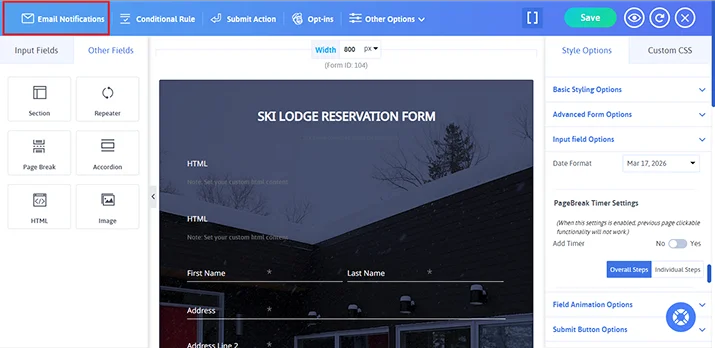
Now to configure:
- Admin notification emails to receive new reservation requests.
- Confirmation emails for travelers after they submit the form.
You have to simply tick on “Send an automatic response to users after form submission”. And next, tick on “Send an automatic response to admin user after form submission”.
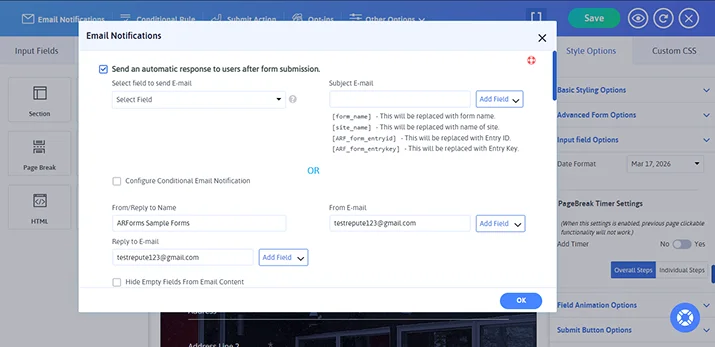
That’s it! This ensures both you and the traveler receive a booking confirmation right away. And the amazing part is you can personalize these automated emails by using simple shortcode placeholders.
Step 8: Embed the Form on Your Website
Congrats! You’ve finally created your own trip reservation form in just a few minutes with a few simple steps.
Now to add this form in your WordPress travel website, simply copy the form’s shortcode, and paste it whenever you wanna show your trip form.
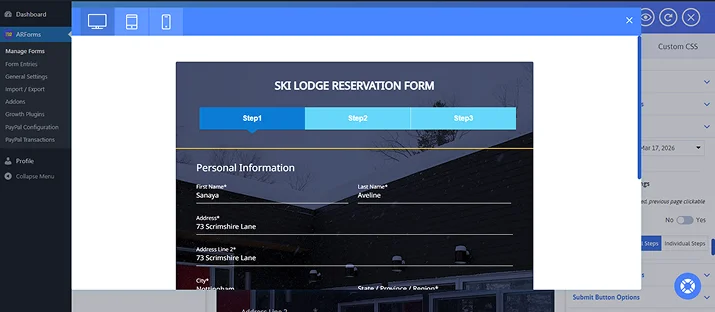
Note: If you wanna see how your form works and appears on a live site before making it actually live, ARForms got a quick live preview. Simply click on the “eye icon” on the top-right bar, and see how your trip reservation form looks across all devices.
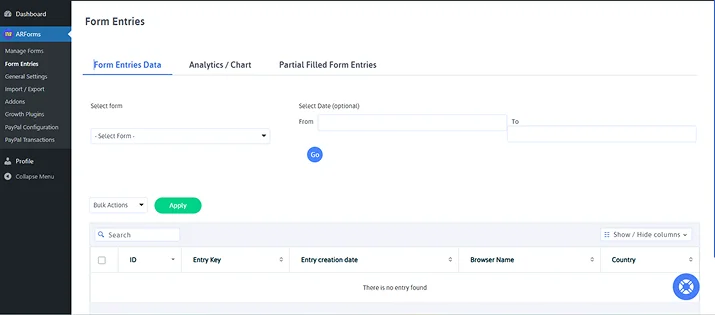
Once your trip reservation form is live and starts getting bookings, you’ll see all the form entries inside ARForms → Form Entries. Furthermore, ARForms offers a great way of analysing all of these form entries with advanced reports and charts.
Conclusion
This is how you build a complete trip reservation form with zero coding. Just drag and drop the fields, style it and embed it.
Once your travel booking form is live, visitors can submit their reservation requests right from your website, making the complete booking process smoother for both you and your customers.
You may also like
- 9 Best Contact Form Plugins for WordPress in 2026
- How to Create an Online Event Registration Form? [+Templates]
- 8 Reasons You Should Use a Contact Form on Your Site
FAQs
What is the difference between a reservation form and a booking form?
The real difference between a reservation form and booking form is that a reservation form acts as a “soft hold” or temporary arrangement for a service without full payment, while a booking form is a legal binding that needs full payment upfront.
Can I collect payments through a travel reservation form?
Yes, you can! By using ARForms to create your travel reservation form, you can integrate multiple payment gateways such as PayPal or Stripe to collect online payment.
What information is needed on a reservation form?
For a basic reservation form, here’s the information needed:
- Guest’s full name
- Booking date & time
- Contact info
- Payment details
- Special requests
- Terms and condition checkbox
How do I create a reservation form?
You can create a reservation form using ARForms, the best WordPress form plugin. It comes with over 50+ sample forms and professional looking templates for creating your trip reservation form in just a few minutes.