How to Customize WordPress Admin Dashboard for Faster Management


Default WordPress admin is built for everyone, which is the same as built for nobody. You log in. First thing on screen is the welcome panel, then “WordPress Events and News,” then Quick Draft, then a stack of plugin upsell notices. None of that is what you opened wp-admin to do.
This guide walks through how to customize WordPress admin dashboard layout, menus, widgets, media, and login flow without writing PHP. WP Adminify carries most of the load because it’s the plugin we install on every new client site. Four other plugins fill the gaps.
Quick definition: Customizing the WordPress admin dashboard means changing the backend itself: sidebar admin menus, dashboard widgets, post list columns, branding, media library, and the login URL. Your team or your clients spend less time hunting and more time shipping. With a plugin like WP Adminify, the work moves out of functions.php and into a settings panel.
Why Bother Customizing The WordPress Admin
Default wp-admin is fine if you run one personal blog. Build for clients, run a WooCommerce store, or hand the backend to a non-technical team, and the cracks show within a week.
The pain points we keep running into:
- Admin Menu bloat. Install ten plugins and the sidebar grows to 25+ items. Half have submenus you’ll never click. Finding “Posts” requires scrolling.
- Dashboard widgets nobody reads. “WordPress Events and News” has never helped anyone ship faster. “Quick Draft” gets used roughly never. They sit there eating screen space.
- Cluttered media library. 4,000 images in one flat list. Finding the hero image you uploaded last Tuesday is archaeology.
- Generic branding on client sites. Clients see the WordPress logo every login. On a $15K agency build, that’s a tell that hurts perceived value.
- Slow workflows. Duplicate a page, replace an image without breaking links, redirect /wp-admin. Each one needs a separate plugin or a developer.
- Support tickets that shouldn’t exist. Clients ask where “Pages” is because the sidebar has 30 items and they got lost.
Customizing the admin fixes these. Manage 10+ client sites and the saved time compounds. We measured it on our own agency work: shave 20 seconds off 50 daily tasks, that’s almost 3 hours a week. Same compounding logic WordPress speed optimization applies on the front end and works on the back end too.
WP Adminify: The Dashboard Customization Plugin We Use
WP Adminify is the plugin this guide centers on. 7000+ active installs per WordPress.org. 4.5-star average across 100+ reviews. 60+ admin modules in one install. Most other admin plugins solve one problem each. WP Adminify solves seven or eight: admin menu editor, white-label, media folders, login customizer, dashboard widgets, URL redirects, admin columns, plus odds and ends like duplicate post and heartbeat control.
What that gets you in practice: fewer plugins on the site, fewer plugin conflicts to debug, one update cycle, one license to renew, one settings UI to learn instead of eight.
The free version on WordPress.org covers most basic customization. Pro adds role-based controls, full white-label, and a few of the heavier modules below.
WP Adminify Features That Actually Save Time
Each feature below maps to a specific dashboard problem and replaces a separate plugin you’d otherwise install.
Custom Dashboard UI (Layout Templates And Dark Mode)
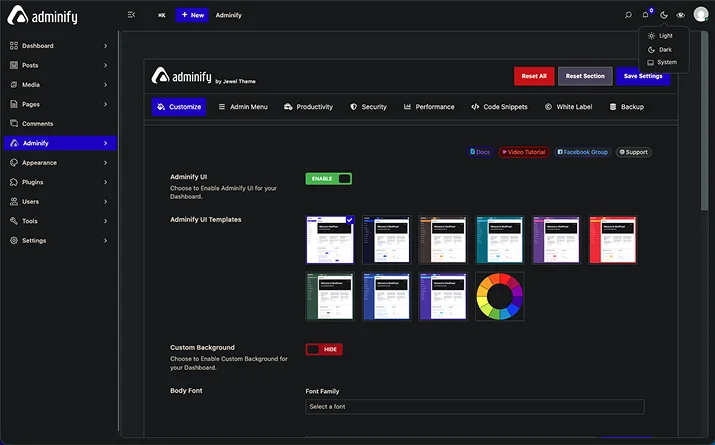
WordPress admin UI hasn’t changed visually in years. WP Adminify ships several dashboard UI templates: Light, Dark, Modern, Glass. Plus per-user dark mode with optional sunset scheduling.
Why this matters for daily use: dark mode reduces eye strain over a long admin session. Modern template surfaces the action buttons you click most (Add New, Edit, Update) more prominently than legacy WordPress chrome. You can also override admin fonts and accent colors globally.
For agency work, set one polished UI template once and every client site you deploy starts with it. No more handing over a 2010-era backend.
Media Folders For The Entire Backend
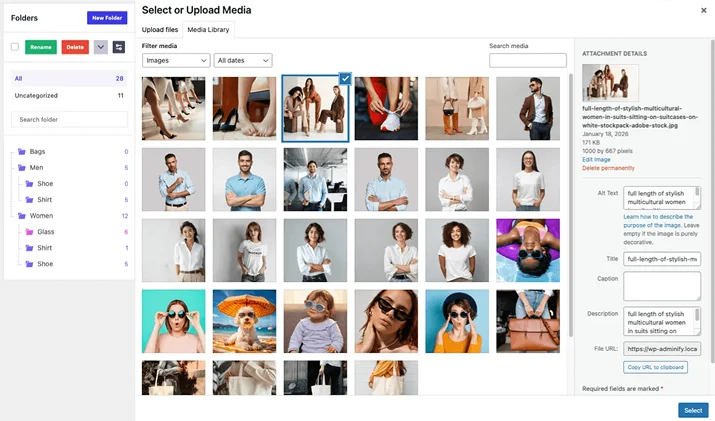
WordPress media library is a flat list. Upload 500 images and good luck finding the one from last Tuesday. WP Adminify Media Folder fixes that with drag-and-drop folders, and it goes further than the dedicated folder plugins like FileBird or Real Media Library.
Most folder plugins only organize media. WP Adminify Folders also organize Posts, Pages, WooCommerce Products, and any Custom Post Type. Group blog posts by client. Group products by season. Group pages by funnel stage. All in the same folder UI.
What you get:
- Unlimited nested subfolders
- Color-coded folders (we use blue for client assets, red for urgent review, green for approved)
- Folders show inside the Gutenberg “Add Media” modal so you don’t leave the editor
- Compatible with Elementor, Beaver Builder, and Classic Editor
- Existing image URLs never change, so reorganizing doesn’t break a single link
WordPress Media Replace (Same URL, New File)
Feature you don’t appreciate until the day you need it. Uploaded the wrong logo. Client wants the brochure PDF updated. The hero image needs a fresher photo. Default WordPress wants you to upload a new file (which gets a new URL), edit every reference, and delete the old one. On a 30-page site, that’s an hour of busywork plus three things you’ll forget to update.
WP Adminify Media Replace swaps any image, PDF, video, or attachment with a new version while keeping:
- Same URL
- Same filename
- Same publish date
- Same alt text, captions, descriptions
- Same attachment ID
Every link, embed, theme reference, email signature, and partner site link keeps working. Multi-step undo too. Replaced a logo five times? Roll back five times, one click each. Every previous version is auto-backed up.
Where this earns its keep:
- WooCommerce product photo updates that need to keep SKU image references
- Logo or brand asset refreshes across white-labeled deliverables
- Video re-encodes where the post embed URL has to stay the same
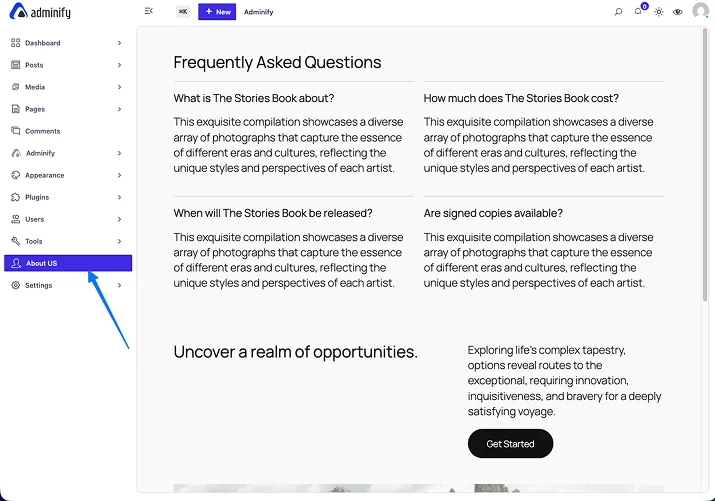
Custom Admin Page (Build Your Own Dashboard Screen)
Want a custom welcome screen for clients with their own KPIs, a setup checklist, or branded copy? Custom Admin Page module lets you build admin pages with whatever page builder you already use: Gutenberg, Elementor, Divi, Beaver Builder. No PHP. No add_menu_page() boilerplate.
What you can do:
- Add the custom page as a top-level menu item or as a submenu
- Restrict it to specific user roles (Editors see one page, Subscribers another)
- Hide the default WordPress page title and admin notices for a clean, client-facing look
- Inject custom CSS and JavaScript for fine-grained branding
Pair this with login redirects (covered below) and a logged-in client lands directly on the custom welcome screen instead of the generic WordPress dashboard. Useful pattern for any flow that already starts with custom user registration forms. Welcome screen becomes the natural next step.
Custom Dashboard Widgets (Replace The Junk)
Default dashboard ships with widgets nobody asked for. “WordPress Events and News,” “Quick Draft,” “Site Health” (sometimes useful, often noise), and “At a Glance.”
WP Adminify lets you remove the defaults and add your own custom dashboard widgets. Widget types we actually use:
- Text/HTML widget. Onboarding instructions, contact info, or a branded welcome message for client sites.
- RSS widget. Pulls updates from your agency blog, project management tool, or status page. Clients see “what’s new” without you emailing them.
- Iframe widget. Embed a Google Doc, Notion page, internal dashboard, or video tutorial. We use this to embed our support knowledge base on client sites. Cuts support emails noticeably.
URL Redirection (Login, Logout, /WP-Admin)
Default /wp-admin is the first URL brute-force bots hit. WP Adminify URL Redirection changes the WordPress login URL, the register URL, and sets role-based login and logout redirects. One of the easier wins on most WordPress security practice checklists.
What you can configure without code:
- Custom login URL. Replace /wp-admin with anything (/team-portal, /control-room).
- Custom register URL. Useful for membership, LMS, and e-commerce sites.
- Login redirect by role. Subscribers go to a custom welcome page. Authors land on the post editor. Admins go to the dashboard. Useful on any site running one of the best WordPress membership plugins.
- Logout redirect. Send users to a re-engagement page instead of wp-login.php.
- Block /wp-admin access. Anyone hitting the old URL gets redirected somewhere else.
This single module replaces two plugins most sites stack: a login URL changer plus a role-based redirect plugin. Reduces brute-force traffic in the bargain.
Admin Menu Editor (Hide, Reorder, Rename)
The wp-admin sidebar gets bloated fast. WP Adminify’s admin menu editor is drag-and-drop and covers:
- Reorder menu items
- Hide menus per role (Editors don’t see Plugins, Subscribers don’t see Tools)
- Rename labels (“Posts” to “Articles” if that matches how your team talks)
- Replace menu icons with Dashicons or uploaded SVGs
- Add custom external links to the sidebar
- Add separators to visually group related items
For a multi-author site, set this once and writers stop seeing menus that don’t apply to them. Support tickets that start with “where do I find…” drop noticeably.
White Label And Branding
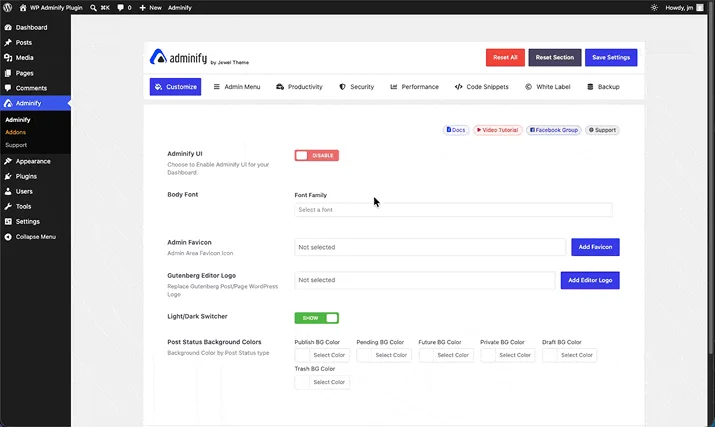
If you build for clients, white labeling isn’t optional. WP Adminify replaces every visible piece of WordPress branding:
- Custom admin logo, with separate light and dark mode versions
- Custom favicon
- Custom footer text
- “Howdy” greeting replacement (or removal)
- Plugin white label, so even WP Adminify itself appears as your agency’s plugin in the menu
- Hide the WordPress logo from the admin bar
Result: client logs in and sees your agency. Not WordPress. Pair it with a branded login screen (see the walkthrough on how to customize the WordPress login page) and the entire entry flow stops looking like stock WordPress.
Other WP Adminify Features Worth Knowing
Rundown of features we won’t cover in detail but worth flipping on:
- Admin Columns Editor. Add, remove, and reorder columns on the post list, with ACF, Metabox, Pods, and WooCommerce support.
- Duplicate Post/Page/CPT. One-click clone of any content type.
- Activity Logs. Track who changed what, and when. Cleaner than stacking one of the standalone WordPress audit log plugins on top of an admin plugin.
- Hide Admin Notices. Kill the nag screens plugins keep dumping into wp-admin.
- Disable Comments Globally. Site-wide or per-post-type.
- Heartbeat API Control. Reduce admin-ajax.php load on the editor screen.
- Code Snippets Manager. Header/footer scripts, custom CSS, custom JS, all without theme edits.
That’s the highlight. Full feature list lives on the WP Adminify features page.
Step-by-step: No-Code Dashboard Setup
A 6-step path from default WordPress to a customized admin. No code.
Step 1: Install WP Adminify
From your WordPress admin, go to Plugins → Add New, search “WP Adminify”, click Install, then Activate. The free version is enough for everything except white labeling and a couple of Pro modules.
Step 2: Pick a Dashboard UI Template
Navigate to WP Adminify → Customize → Dashboard UI. Modern or Glass works well for client sites. Dark works well as your daily driver. Toggle dark mode and set a sunset schedule if you want auto-switching.
Step 3: Clean The Dashboard Widgets
Go to WP Adminify → Productivity → Dashboard Widgets. Disable “WordPress Events and News,” “Quick Draft,” and “Welcome Panel.” Add a custom Text widget with your team’s onboarding link, or a custom RSS widget pointing to your support docs.
Step 4: Trim The Admin Menu
Open WP Adminify → Admin Menu Editor. Drag menu items into the order you actually use them. Hide menus your clients shouldn’t touch (Tools, Plugins, Updates) per role. Rename anything that sounds developer-y to plain English.
Step 5: Set Up Media Folders
Open your Media Library. The Folders panel appears on the left. Create top-level folders (“Logos,” “Hero Images,” “Client Assets,” “PDFs”) and drag existing media into them. Color-code the high-priority ones.
Step 6: Configure Login URL And Redirects
Open WP Adminify → Security → URL Redirects. Change the login URL from /wp-admin to something memorable but not obvious (/control-room, /team-login). Set logged-in Subscribers to redirect to a custom welcome page. Set Editors to land on Posts.
Total setup: 15 to 20 minutes. Dashboard now matches your workflow instead of WordPress’s defaults.
Optional: The Functions.php Equivalent for Developers
If you prefer code for one-off tweaks (removing one specific dashboard widget on one site you maintain personally), here’s the WordPress hook approach. Drop it in a WordPress child theme so it survives parent theme updates:
// Remove default WordPress dashboard widgets
function adminify_remove_dashboard_widgets() {
remove_meta_box(‘dashboard_primary’, ‘dashboard’, ‘side’); // WordPress News
remove_meta_box(‘dashboard_quick_press’, ‘dashboard’, ‘side’); // Quick Draft
remove_meta_box(‘welcome_panel’, ‘dashboard’, ‘normal’); // Welcome Panel
}
add_action(‘wp_dashboard_setup’, ‘adminify_remove_dashboard_widgets’);
WP Adminify wraps that hook (and 200+ similar ones) in a UI. Code is fine on a personal site you maintain alone. For multi-site or client work, the plugin scales better because you don’t have to copy the snippet to every new install.
Other Plugins to Pair With WP Adminify
WP Adminify covers the dashboard. Plugins below cover adjacent jobs: login pages, the top admin bar, user roles, and content list columns.
1. Loginfy: WordPress Login Page Customizer
Loginfy is a dedicated login page builder with 16 pre-built templates and live WordPress Customizer integration. Where WP Adminify changes the login URL, Loginfy changes the login page itself: logo, background (image, gradient, video, slideshow), form styling, button colors, custom CSS. Pair the two and the entire login flow is white-labeled, branded, and on a custom URL.
2. Admin Bar Editor: Top Toolbar Cleanup
Admin Bar Editor handles the top toolbar (the black bar that runs across the top when you’re logged in). Hide items by role or username, remove the WordPress logo, swap icons, drag-and-drop reorder, add custom shortcuts, rename “Howdy.” If your toolbar wraps to two lines because plugins keep dumping links into it, this is the one toggle that fixes it.
3. RoleMaster Suite: Advanced User Role Editor
RoleMaster Suite is a free user role editor. Create unlimited custom roles, duplicate existing ones as starting points, control granular capabilities, and assign tiered access levels. Worth installing on membership sites, multi-vendor marketplaces, LMS builds, and any site where the default 5 WordPress roles don’t fit. Plays nicely with WP Adminify’s role-based features.
4. Admin Columns Editor: Custom List Table Columns
Admin Columns Editor changes the columns on Posts, Pages, CPTs, Taxonomies, Users, and WooCommerce product lists. Add ACF, Metabox, or Pods fields as columns. Resize, rename, sort, filter, drag-reorder. Worth installing for editorial workflows where you want word count, featured image, and ACF status visible in the post list, not buried inside the editor.
Plugin Comparison Table
Which plugin handles which job:
| Job to be done | Plugin | Native WP alternative | Why the plugin wins |
| Customize dashboard UI, menus, widgets, media, redirects | WP Adminify | Multiple plugins plus code | One install, fewer conflicts |
| Brand the login page (logo, background, form) | Loginfy | None native | 16 templates, live preview |
| Clean the top admin toolbar | Admin Bar Editor | Filter hooks in code | Drag-drop, no code |
| Create or edit user roles and capabilities | RoleMaster Suite | 5 default roles only | Unlimited custom roles, tiered access |
| Add custom columns to post lists | Admin Columns Editor | None native | ACF/Metabox/Pods/Woo support |
Wrap-Up
You don’t need a developer to customize WordPress admin dashboard. Defaults are slow, generic, and built for nobody in particular. A no-code plugin like WP Adminify replaces the noise with an admin UI tuned to how you actually work: cleaner menus, organized media, branded for your agency or client, fewer clicks per task.
Quick recap:
- Default wp-admin is identical for everyone, which is why it slows most workflows down
- WP Adminify replaces five to eight single-purpose plugins with one settings panel (60+ features)
- Highest-leverage modules: Custom Dashboard UI, Media Folders, Media Replace, Custom Admin Page, Custom Dashboard Widgets, URL Redirection
- Pair with Loginfy (login page), Admin Bar Editor (top toolbar), RoleMaster Suite (user roles), Admin Columns Editor (post list columns)
- Setup is roughly 15 to 20 minutes. Time you save shows up the same week.
If you haven’t installed it yet, grab WP Adminify and run the 6-step setup above. Dashboard customization modules will cover most of what’s in this article on day one.
You may also like :
- 8 Best Free Landing Page WordPress Themes and Plugins
- 10 Online Project Management Tools to Increase Productivity
- How to Automate Lead Management with WordPress AI Agent
FAQ
How do I customize the WordPress admin dashboard without coding?
Install a dashboard customization plugin like WP Adminify. From its settings panel you can switch the dashboard UI template, hide widgets, reorder menus, organize media into folders, set custom login redirects, and white-label the branding. No PHP, no CSS, no JavaScript. Setup takes about 15 to 20 minutes.
Can I add custom widgets to the WordPress dashboard?
Yes. WP Adminify’s Custom Dashboard Widget module supports Text/HTML widgets, RSS feed widgets, and iframe widgets. Each widget can be visible to specific user roles. Without a plugin, the same job needs a custom function using wp_add_dashboard_widget() in your theme’s functions.php.
Will customizing the WordPress admin dashboard break my site?
No. Admin customization plugins only touch the backend UI. They don’t modify your frontend, your theme, or your post and page content. WP Adminify lets you toggle every module on or off independently, and uninstalling restores the default WordPress admin instantly. Posts, pages, and media stay untouched.
Is there a free WordPress dashboard customization plugin?
Yes. WP Adminify on WordPress.org has a free version that covers dashboard UI templates, the admin menu editor, dashboard widgets, basic media folders, dark mode, and disable comments. White labeling, role-based controls, and a few of the heavier modules are Pro.