How to Send SMS Notifications from Your WordPress Forms


Looking for a way to send SMS notifications from your WordPress forms? ARForms has got your back!
SMS notifications are still considered one of the fastest and most effective ways to reach your users.
The best thing? SMS messages and notifications have a 98% of open rate. Means most of the SMS messages are read within just a few minutes compared to email form notifications.
Now some might be wondering if setting up SMS integration in WordPress might be complicated, yet with ARForms, everything is easy. You can set up WordPress SMS notification services and send SMS text message alerts to users and admin with ease.
In this guide blog, We’ll show you how to send SMS notifications from your WordPress forms in just a few simple steps. So let’s see how you can set it up!
Why Use SMS Notifications in WordPress Forms?
Now here’s the thing. We all can easily automate and send email form notifications using multiple email marketing services and are already. So why even use SMS notifications in WordPress forms in the first place?
With SMS push notifications, you can collect valuable information and connect with your users instantly. Plus, even study shows SMS notifications have more opening rate compared to email notifications.
However, there’s always more to it than it seems. Sending SMS notifications is an effective marketing way to increase conversions.
Curious to know how? Here are some benefits of using SMS notifications from WordPress forms:
- Instant Alerts with faster response time for admins on new leads and orders
- Unlike emails which gets filtered into spam folder, SMS messages appears more reliable
- Improve customer experience by sending SMS notifications for events such as registrations, welcoming new users, or buying something using an order form
- Send SMS notification for appointment reminders, promotions, or access codes for events
- Offers better reach and more accessibility even without internet
What You Need to Send SMS Form Notifications in WordPress
Now before we dive into the process of configuring SMS notifications services and all, we gotta prepare.
So here are the things you need to send SMS notifications from your WordPress forms:
- A WordPress site: duh, obviously!
- ARForms: You have to install ARForms Pro and activate it in your WordPress dashboard.
- ARForms SMS Addon: ARForms SMS Add-on is already included for free in ARForms Pro.
- SMS service Account: Twilio, Nexmo, SMSGlobal, Clickatell, and more.
- Admin/user phone numbers: Of course, you’ll need to get both yours and your users phone number.
Now that you have everything prepared, let’s get started without any further delay.
How to Send SMS Notifications with ARForms (Step-by-Step)
Step 1: Install & Activate ARForms + SMS Add-On
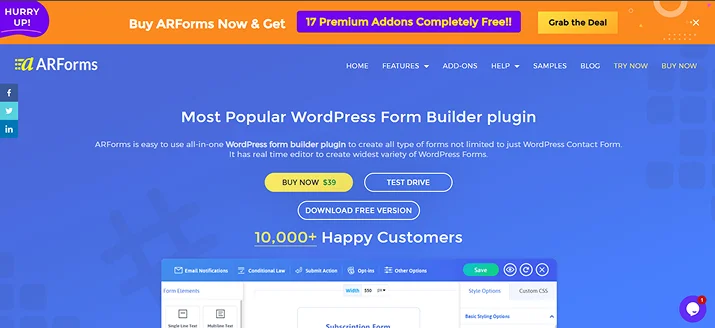
First, you have to install the ARForms Pro.
Now if you think, why go with ARForms Pro? Then the reason is simple.
ARForms is a powerful WordPress form builder for creating all kinds of WordPress forms with exclusive styling. This plugin offers more than 33+ advanced form fields, 24+ third party integrations along with smart conditional and Math login – All in one ARForms Pro.
Best of all, ARForms Pro is a one-time purchase with lifetime updates along with every single robust feature, addons and integrations.
However, you can also go with ARForms Lite which is a free version of ARForms. If you prefer to go with the free version, then all you have to do is get the ARForms SMS Add-on at just $15 from Code Canyon.
So, let’s get started by installing ARForms. Here we go:
- First, go to the official website of ARForms to download the ARForms WordPress form plugin.
- Next, go to your WordPress dashboard → Plugins → Add New → Upload.
- Here, upload the downloaded zip file of ARForms and click on install, then activate it.
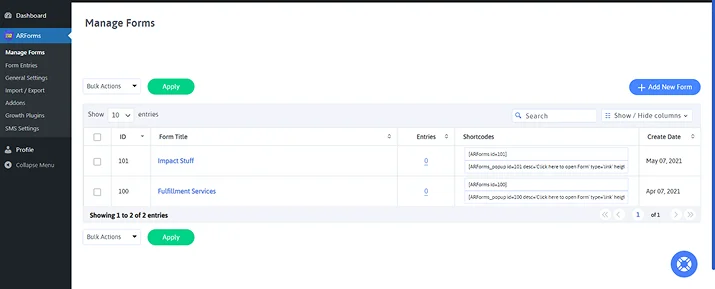
- Once done, you can see the ARForms friendly user interface on the left side panel of WordPress.
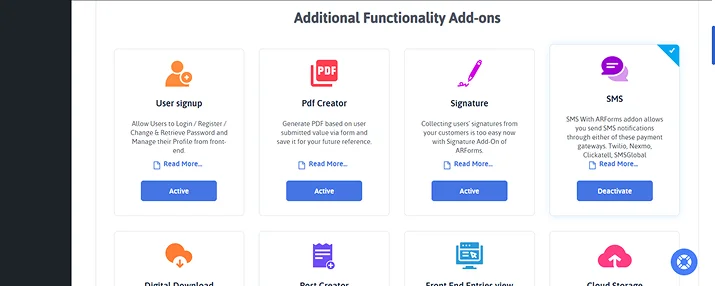
Now that you have successfully got ARForms on your WordPress dashboard, it’s time to get ARForms SMS Add-on. Here we go:
- After exploring and getting familiar with the ARForms interface, Go to the “Addons” panel.
- Next scroll until you find the SMS Addon under the “Additional Functionality Add-ons” section.
- Simply click on “Active” and you are set to go!
Step 2: Create Your WordPress Form with ARForms
Now to send SMS notifications from your WordPress forms, of course you’ll need a WordPress form.
ARForms makes creating any kind of WordPress form super easy. It comes loaded with a set of robust editing and styling features to design your forms the way you want perfectly.
You won’t believe how easy it is to kickstart your online form with ARForms by directly choosing from its 50+ ready-to-go form samples and templates.
All you have to do is go to the Manage Forms → Add New Forms. Now you can easily go with any of the sample forms or templates you like.
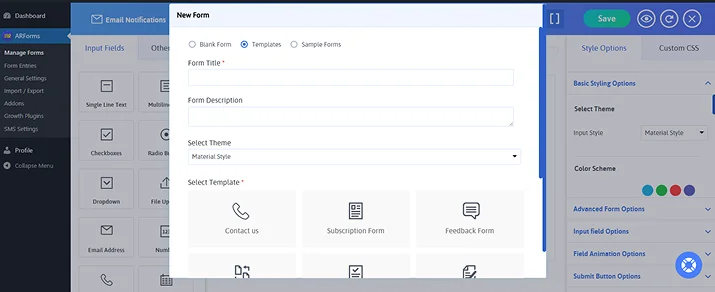
If you wanna build from scratch, you can also do that. ARForms comes with a friendly drag and drop interface so making any form is super easy.
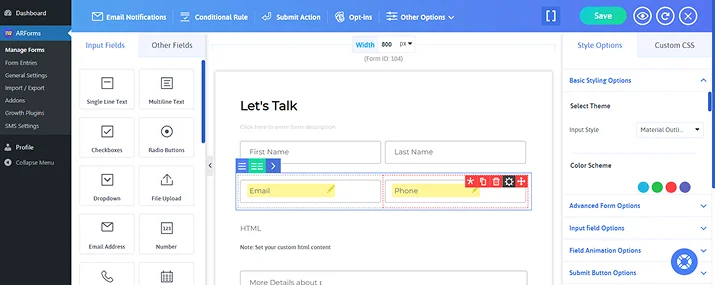
However, no matter what kind of form you create, make sure to ask for the user’s phone number. Simply drag and drop the phone number form field from the “Input Fields” and you are all set to go!
The best thing? You can also see how your online forms look in real life with ARForms quick live preview. Simply go to the eye icon on the top right bar and see how your WordPress form will appear in real life, across multiple devices.
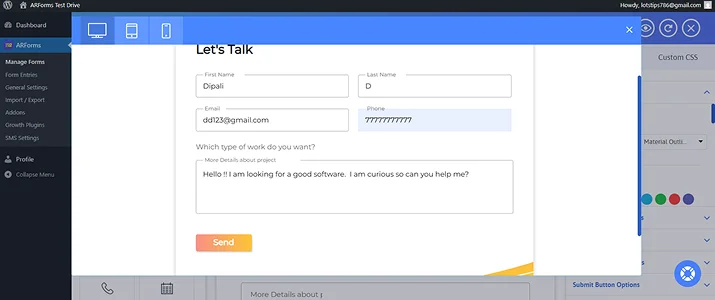
Step 3: Connect Your SMS Gateway
Remember we have activated the SMS integration Addon at the start. Back then, have you noticed the new “SMS Setting” panel.
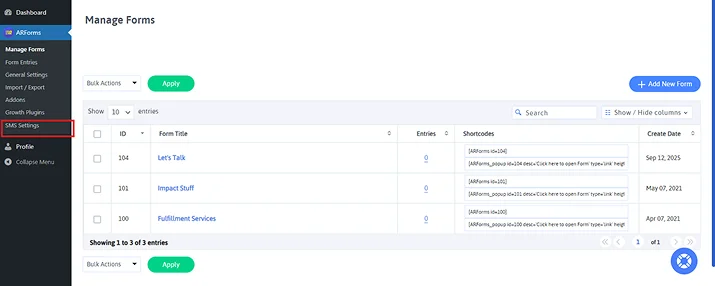
Exactly! After saving your WordPress form, click on SMS settings. Here you can easily configure your preferred SMS gateways.
The best part? Unlike other plugins which lets you integrate only a few popular SMS gateways. The thing that makes ARForms unique is, you can send SMS notifications through more than 35+ popular SMS gateways.
The list of popular SMS gateways goes like:
- Twilio
- SwiftSMSGateway
- Clickatell
- Redoxygen
- 1s2u
- Experttexting
- BearSMS
- MessageBird
- Spirius
- D7 SMS
- EZTexting
- Nexmo
- SMSGlobal and the list goes on up to 35+ SMS gateways.
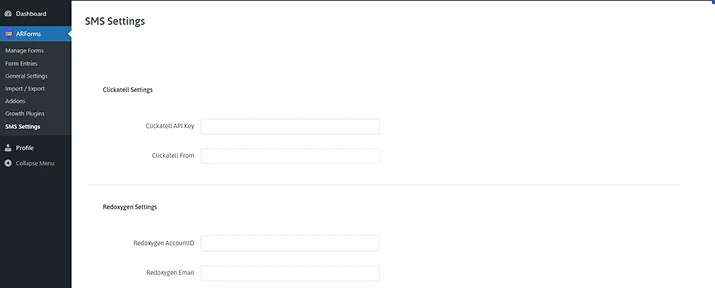
As we have discussed before, you’ll need the account details of your preferred SMS gateways. If you haven’t created one, make sure to do so to continue further.
Let’s say you wanna send SMS notifications using Twilio.
So once you created your Twilio account, get the required details which are mentioned and just paste them inside the required fields. Suppose for Twilio, you have to add your Twilio Account SID,Twilio Auth Token and Twilio From Number into the text boxes on the Twilio settings.

Once all set, simply scroll down to the last till you see the “Save Changes” button. Next, you just have to save changes from here. You can also enable debug mode if you want.
Moreover you can also access and take the help of our beginner friendly user guide mentioned at the bottom-right corner.
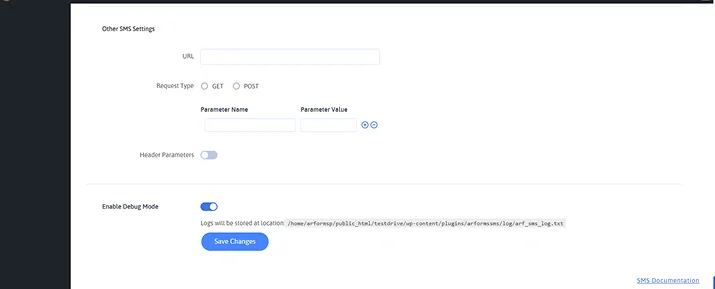
Step 4: Configure SMS Notifications in Your Form
Once everything is saved, go back to “Manage Forms” and open the WordPress form you wish to configure for SMS notifications.
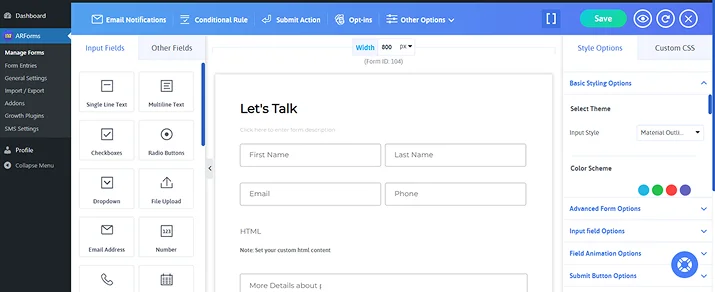
You have to go to Submit Action → SMS Configuration. Now from here, you can select the SMS gateways you have configured earlier. Just select the SMS gateway you connected to.
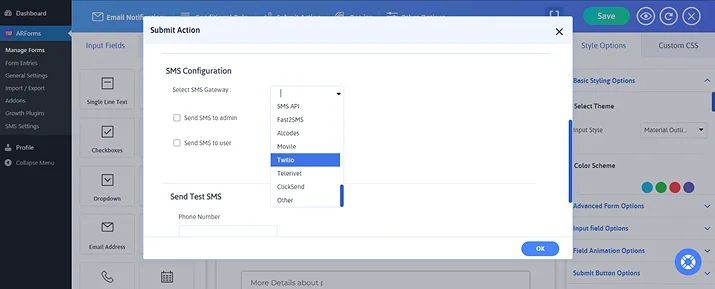
Next, here you can see two options:
- Send SMS to admin
- Send SMS to user
First let’s go with “Send SMS to admin”. Simply tick on it and you can add admin’s phone number and your customized SMS text message.
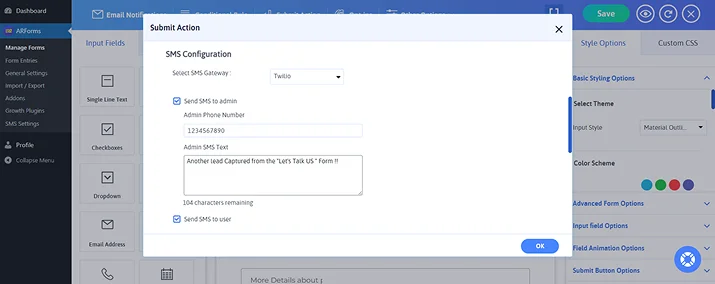
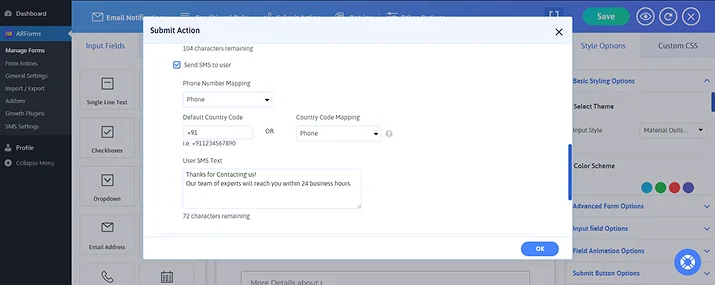
After enabling WordPress SMS notification for admin, click on the “Send SMS to user”. Now map the “Phone Number Mapping” to your phone form field to get your users phone number.
Next, set up your default country code or map it with your country code form field if you have created any.
Lastly, create your customized user SMS text to send upon form submission.
Step 5: Test & Send Your First SMS
Wait a minute! Don’t just simply click on “OK” yet and save the changes because first you gotta be sure your SMS notifications are getting sent.
For testing your WordPress SMS notification and making sure your SMS gateways credentials are correct, ARForms allows you to send a test SMS.
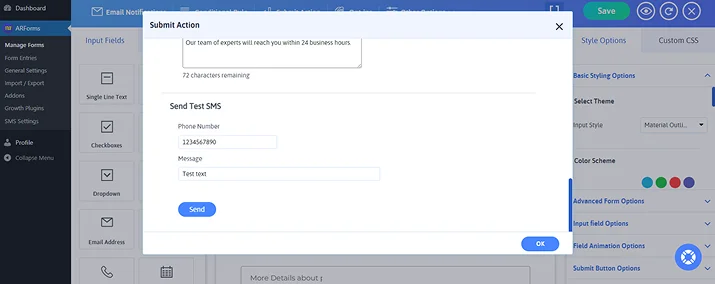
Simply take a look at the “Send Test SMS” section and enter your own phone number and a dummy text message.
Next, click on the “Send” to check if your SMS notification got delivered or not.
If you got your dummy WordPress SMS notification successfully, it’s finally done.
Last but not the least, click on the “OK” button to save your customized SMS message and settings.
Now go on! Make your WordPress form go live and let your WordPress form send automatic SMS notifications.
Conclusion: Send WordPress SMS Notifications Easily with ARForms
Whether you are creating an event registration form, a new lead generation form, eCommerce order form, appointment booking form or payment form, Sending SMS notification is the smartest way.
To send SMS notifications from your WordPress forms, all it takes is ARForms.
By setting up SMS notifications, you can get new alert texts and form notifications from multiple events. Afterall, configuring SMS notifications has more use cases than it meets the eye. Here are some of the use case examples of SMS form notifications:
- Instant new lead capture notifications for admin
- Event registration confirmations for registered users
- Order updates and payment success SMS alerts
- Membership site SMS notifications for login OTP, subscription reminders and more
- Service bookings to notify both user and the service provider to never miss an appointment
In a nutshell, You can send WordPress SMS notifications from your online forms easily. So why wait any longer? Get ARForms today and start sending instant SMS notifications right from your WordPress forms.
You May Also Like:
- Email Notifications: Best Practices, Types & Examples
- 8 Best Ways To Grow Your Business With Web Form Builder
- A Step By Step Guide for Creating WordPress Contact Form
FAQs about SMS Notifications in WordPress
What Is The SMS Notification In WordPress?
SMS notifications are instant text messages which are sent by a WordPress form or website to users and admins via SMS notification services. SMS notifications are one of the fastest and most effective ways to reach your users as they have over 98% of open rate.
Which SMS Gateway Is Best For WordPress?
Here’s the list of SMS gateways which are best for WordPress:
- Twilio
- Clickatell
- SMSGlobal
- Nexmo
Can I Send SMS Notifications Internationally?
Yes, you can send SMS notifications internationally with ease. For that, you have to choose the SMS gateways like Twilio or Nexmo which support international SMS delivery.
How Do I Send SMS Notifications From WordPress Forms?
You can send SMS notifications from WordPress forms by using a WordPress form builder plugin like ARForms. ARForms comes with a free SMS Addon in its Pro version. All you have to do is connect your SMS gateway then configure the settings and SMS message. That’s it. Now you can easily send automatic SMS notifications after your WordPress form submission.
Can I Customize The SMS Message Content?
Yes, Absolutely! You can customize the SMS message content and set it to send it for both admin and users with the help of ARForms, a powerful WordPress form builder plugin.
Is Coding Required To Enable SMS In WordPress?
Not at all! No coding is needed to enable SMS in WordPress. With ARForms and its SMS Addon, you can easily send SMS notifications automatically for both admin and users – no complex coding. No complex technical settings